Best VPS Backup Tool: 5 Options Compared for 2026
Best VPS Backup Tool: 5 Options Compared for 2026
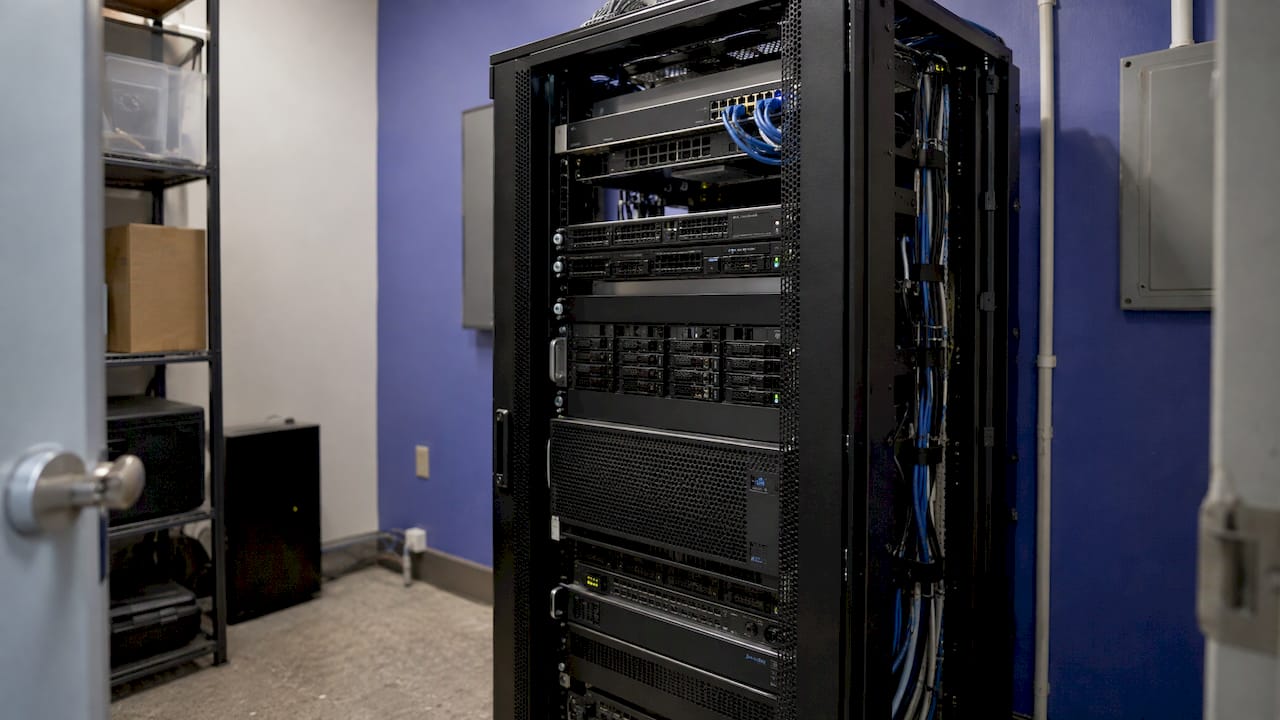
The best VPS backup tool is the one that writes copies you own, on a schedule you never touch, and tells you when a run fails. For most teams running servers at one or more cloud providers, that is VPS Snaps: it automates provider snapshots, database dumps, Docker volumes, files and Kubernetes backups, and streams the data straight into a bucket in your own account. Below, we compare it with the other realistic ways to back up a VPS, so you can see where each one stops.
TL;DR
- A provider snapshot restores a whole server fast, but it works at whole-disk level, keeps few copies and does not guarantee a consistent database.
- Restic and BorgBackup give you file-level, encrypted, deduplicated history, but you write and maintain the scripts, schedules and alerts yourself.
- WordPress plugins cover a single site; a VPS usually hosts more than the site.
- VPS Snaps combines provider snapshots, database dumps, Docker, file and Kubernetes backups with run logs and retention in one place, and the data lands in storage you own. Plans start at $0 per month, and paid plans from $10 per month.
- Whatever you pick, a backup only counts once you have restored from it.
Table of Contents
- What a VPS backup has to do
- Option 1: your provider’s snapshots
- Option 2: restic
- Option 3: BorgBackup
- Option 4: WordPress backup plugins
- Option 5: VPS Snaps
- The five options side by side
- How to back up a VPS, step by step
- How to choose
- Pricing for VPS Snaps
- Perspective
- Start with the free plan
- FAQ
- Sources
What a VPS backup has to do
A virtual private server holds four kinds of things: the operating system and configuration, application files, databases, and, increasingly, containers and their volumes. A useful backup tool has to cope with all four, and with five operational demands:
- Scheduling. Backups run without anyone remembering them.
- Retention. Old copies are pruned on a rule, so storage does not grow forever and you still have last week and last month.
- Encryption and credentials. Data is protected in transit and at rest, and the keys to your cloud account are not sitting in a plain text script.
- Destination. Copies live outside the machine, and ideally outside the provider’s control.
- Proof. Logs, alerts and a restore path you have actually used.
We use these five criteria for every option below.
Option 1: your provider’s snapshots
Most VPS hosts sell a snapshot or backup feature in the control panel. It copies the whole disk, and a restore brings the whole machine back, usually within minutes. That makes it a good first layer, particularly before a risky upgrade.
Where it stops is worth knowing. Disk-level copies cannot give you one deleted file or Tuesday’s version of one config without restoring the entire server. Retention is often short. And a disk image taken while MariaDB or PostgreSQL is mid-write is not guaranteed to be consistent, so databases are better protected with a proper dump. The VPS Snaps guide to snapshot versus backup for servers walks through the difference, and the longer blog version covers what each one actually protects.
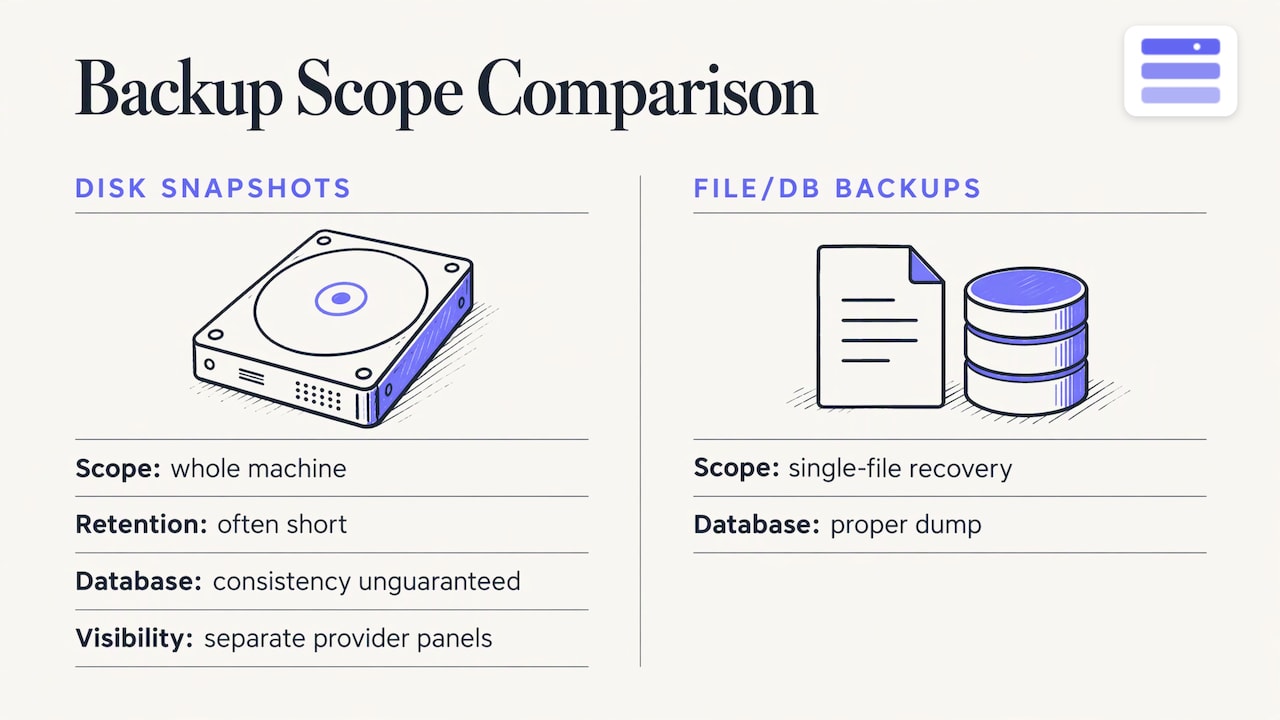
The other limit is organizational. If you run servers at several providers, each panel has its own schedule screen, its own retention rules and its own idea of a failure. Nobody gets one place to look.
Best for: a quick safety net on one server. Gap: granularity, retention, database consistency, and no cross-provider view.
Option 2: restic
Restic is an open-source command-line backup program. It reads your files, splits them into chunks, deduplicates them and writes them to a repository. It supports S3-compatible storage, and its repositories are encrypted with AES-256 before upload, so the storage provider never sees readable data.
For an engineer comfortable on the command line, restic is capable. You get file-level restores, point-in-time history and cheap incremental runs. What you do not get is everything around it. You write the shell script, set the cron job or systemd timer, handle the repository password, add a forget --prune retention policy, and build alerting so that a failed run does not stay silent. On three servers, that means three copies of the same glue code to keep alive.
If you want to see what that setup involves, our guide to backing up a Linux server with restic to S3 lays out the steps.
Best for: a single server run by someone who likes owning the plumbing. Gap: scheduling, monitoring, retention and credential handling are all yours to build.
Option 3: BorgBackup
Borg is the other well-known open-source choice. It is also deduplicating and encrypted, and it is typically used over SSH to a remote host you control. Its append-only mode for repositories is a useful defense against a compromised client deleting history, which is why it comes up in ransomware discussions.
The trade-off against restic is the destination. Borg is most at home with an SSH target, while restic is most at home with object storage buckets. A practitioner’s rule of thumb is to choose Borg when you control the far end over SSH and restic when you are writing to a bucket. Either way, the same operational work lands on you: schedules, pruning, alerts, key custody, and restore drills.
Our BorgBackup guide and the restic vs Borg vs Kopia comparison go into the differences in more detail.
Best for: teams with a hardened SSH backup host. Gap: same as restic: the tool is the easy part, the system around it is not.
Option 4: WordPress backup plugins
If your VPS exists to run a WordPress site, a plugin is the tempting shortcut. Plugins schedule backups from the dashboard and push them to cloud storage. Two caveats from the field are worth knowing before you rely on one.
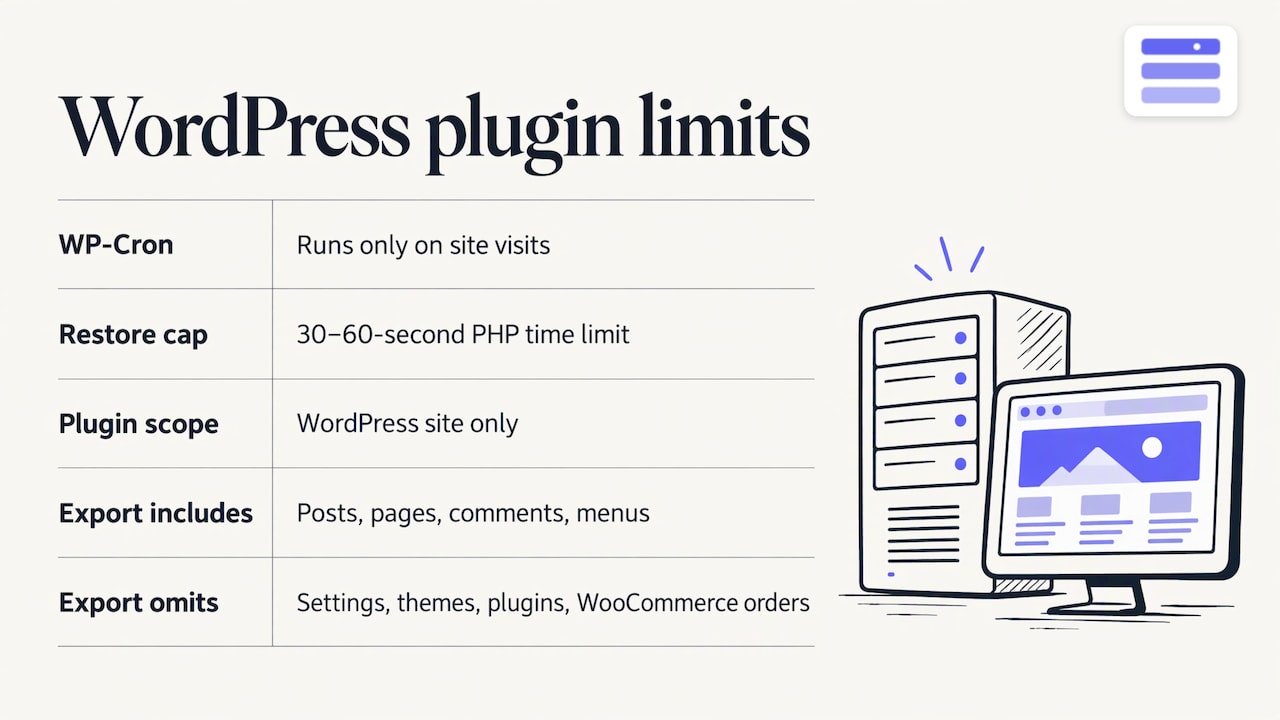
First, plugin schedules usually run on WP-Cron, which only fires when someone visits. PickrTech’s July 2026 comparison notes that on a low-traffic site a 2 a.m. job waits for the next visitor, and that the fix is an external system cron. Second, restoring a large multisite or WooCommerce store through the dashboard can hit PHP time limits on hosts with 30 to 60 second caps, which pushes you into FTP extraction and command-line restores.
There is also the question of what a complete WordPress backup contains. It needs the database, uploads, themes and plugins, other wp-content folders, wp-config.php and the root files such as .htaccess. Built-in exports are not enough: the Tools > Export file holds posts, pages, comments and menus, but leaves out settings, themes, plugins and WooCommerce orders. For a deeper look at what a recoverable site backup should include and how often to take it, this piece on regular WordPress backups for agencies is a good companion.
A plugin sees only the site. On a VPS the same machine often carries other sites, a Docker stack, cron jobs and configuration that no plugin touches. Server-level backups of the files and database cover the site and everything around it. Our guide to database backups covers the MySQL and MariaDB side.
Best for: one WordPress site and nothing else on the box. Gap: blind to everything outside WordPress.
Option 5: VPS Snaps
VPS Snaps is automated, S3-compatible backup software built for server environments. It integrates with seven major cloud providers and uses their APIs to create snapshots directly, under your control, so you are not maintaining a drawer of scripts. One tool covers:
- scheduled provider snapshots
- database dumps
- Docker volume backups
- file backups
- Kubernetes manifest and volume backups
- application detection for server environments
It streams backup data directly into buckets you own, stores credentials encrypted, writes detailed run logs that record each successful operation and flag failures, and manages retention automatically. Snapshot artifacts stay with your provider account and can be restored without relying on VPS Snaps, so you are not tied to a proprietary restore tool.
That structure answers the gaps in the options above. The snapshot layer gives you the fast whole-server restore. The database dumps answer the consistency problem. File and volume backups give you granular recovery. Retention and logs replace the cron jobs and the alert scripts you would otherwise write. If you run Hetzner, the Hetzner snapshot automation guide shows how schedules, API and retention fit together, and the Hetzner provider page shows the setup.
Best for: DevOps engineers, small businesses, freelancers and IT teams who want backups across one or many providers without building and babysitting the system.
The five options side by side
| Criterion | Provider snapshot | restic | BorgBackup | WordPress plugin | VPS Snaps |
|---|---|---|---|---|---|
| Scheduling | Panel setting | You write cron or timer | You write cron or timer | WP-Cron in the plugin | Built in |
| Retention | Provider’s short window | You script pruning | You script pruning | Plugin setting | Automated retention management |
| Databases | Not guaranteed consistent | Dump first, by hand | Dump first, by hand | Site database only | Database dumps included |
| Docker and Kubernetes | Whole disk only | Manual | Manual | None | Docker volumes, Kubernetes manifests and volumes |
| Destination | Provider account | S3, SFTP and others | SSH or local | Cloud storage | Buckets you own |
| Failure alerts | Basic | You build them | You build them | Plugin dependent | Run logs showing successes and failures |
| Multi-provider view | No | No | No | No | Seven cloud providers |
The pattern is clear. The open-source tools are strong engines with no dashboard, snapshots are a fast but narrow layer, and plugins stop at the site. VPS Snaps is the option that packages the engine, the schedule and the evidence.
How to back up a VPS, step by step
Whatever tool you choose, the routine is the same. Here is each step, where it tends to go wrong, and what we take off your hands.
1. Inventory what must survive
List the operating system configuration (for example /etc), application files, databases, Docker volumes and any secrets. The usual mistake is backing up the web root and forgetting the database or the compose files. VPS Snaps includes application detection for server environments, so the apps on the box do not rest on your memory alone.
2. Pick a destination you own
Put copies outside the server and outside the account that could be locked or compromised. An S3-compatible bucket is the common answer. VPS Snaps streams data directly into your own bucket, with no intermediate staging, and our backup storage guides cover options from cloud buckets to a QNAP QuObjects device.
3. Take consistent copies
Files can be copied live, but databases need a dump or a tool-aware backup rather than a raw disk copy. This is where hand-rolled scripts most often fail quietly. VPS Snaps runs database dumps and Docker volume backups as part of the same schedule as your snapshots.
4. Schedule and set retention
Daily is a common starting point for active servers. Keep a rule such as recent dailies plus a few weeklies and monthlies, so a corruption found late is still recoverable. Automated retention management in VPS Snaps applies your rule on every run, which removes the pruning script. Our practical guide to automating server backups goes deeper on schedules.
5. Encrypt and protect credentials
Encrypt data before it leaves the server where you can, and never leave cloud API keys in plain text scripts. VPS Snaps stores credentials encrypted. For more detail, see our pages on security, encrypting backups with GPG and age and protecting backups from ransomware.
6. Monitor every run
A backup job that exits with an error and tells nobody is the classic failure. You want a log of every run and an alert on every failure. VPS Snaps keeps detailed run logs for exactly this purpose, so an audit trail exists without extra tooling.
7. Test the restore
Restore a sample to a staging server on a regular basis and check that the application starts and the data reads correctly. Checksums and integrity checks catch corrupt archives, and the restore drill catches everything else. For ideas on confirming that scheduled backups are readable and restorable, this note on validating backups with checksums and staging restores is a useful angle on health checks. Because VPS Snaps snapshot artifacts stay in your provider account, you can restore them with the provider’s own tools.
How to choose
- One server, comfortable on the command line: restic or Borg will work if you accept the upkeep.
- Only WordPress on the box: a plugin covers the site, and you still want a server-level copy underneath it.
- Several servers, several providers, or a client portfolio: you need one schedule, one retention policy and one log. That is the case VPS Snaps is built for.
- Freelancers watching cost: there is a $0 per month Free plan to start on.
Pricing for VPS Snaps
Prices below are as published on the VPS Snaps pricing page.
| Plan | Monthly | Yearly |
|---|---|---|
| Free | $0 per month | none listed |
| Starter | $10 per month | $120 per year |
| Standard | $30 per month | $360 per year |
| Pro | $57 per month | $684 per year |
| Agency | $117 per month | $1,404 per year |
Perspective
We built VPS Snaps because the failure we kept seeing in server backups is rarely the tool. It is the pile of scripts around the tool, and the day nobody notices that one stopped running.
Our view is simple. Your backups should live in storage you own, your snapshots should stay in your provider account, and you should be able to restore without us. That is why we stream data directly into your bucket instead of staging it, and why restores do not depend on a proprietary tool.
Automation without evidence is just hope, so every run is logged, successes and failures alike. Credentials are stored encrypted. Retention is managed for you. The goal is to take the whole routine off an engineer’s calendar, so one person can protect many servers across many providers.
Scott
Start with the free plan
If you want one tool to cover provider snapshots, database dumps, Docker volumes, files and Kubernetes across your servers, VPS Snaps has a Free plan at $0 per month, and paid plans from $10 per month. You connect your provider, point it at your own bucket and set your retention.
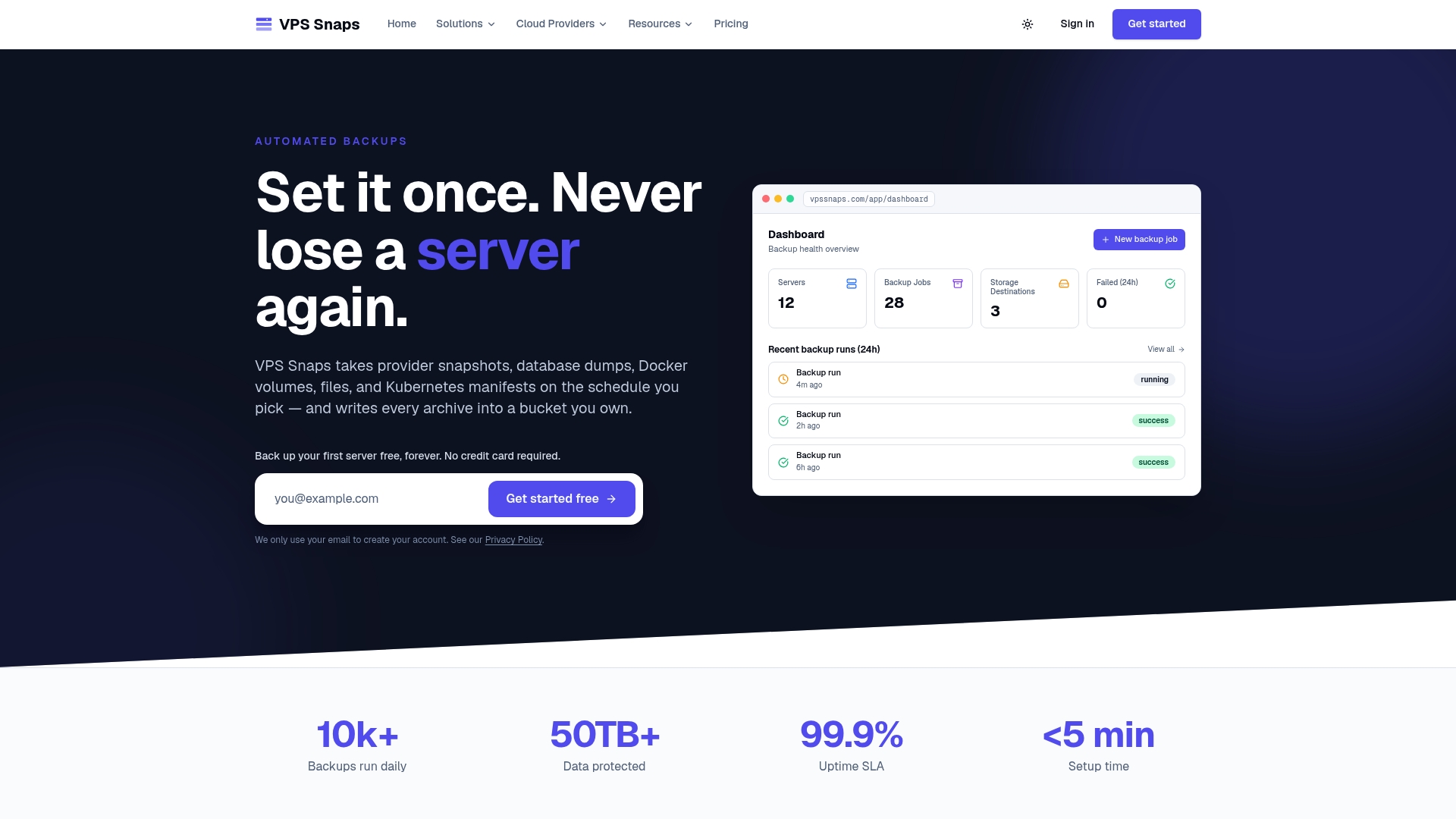
See the plans on the VPS Snaps pricing page, or start from the VPS Snaps homepage.
FAQ
Is a provider snapshot enough to back up a VPS?
It is a good first layer, because it restores the whole server quickly. It works at whole-disk level, though, so recovering one file means restoring everything, and a disk copy taken during a database write may not be consistent. Pair snapshots with database dumps and file-level backups, which VPS Snaps schedules together.
How often should I back up a VPS?
Daily suits most active servers, and databases that change constantly may warrant more frequent dumps. Choose a frequency based on how much data you can afford to lose. Then keep a retention rule that holds weekly and monthly copies too, so late-discovered problems are recoverable.
What should a WordPress VPS backup include?
The database, uploads, themes, plugins, other wp-content folders, wp-config.php and the root files such as .htaccess. WordPress core itself can be reinstalled. A server-level backup of files and database captures all of this along with everything else on the machine.
Do I need to keep using VPS Snaps to restore my backups?
No. Snapshot artifacts stay in your provider account and can be restored without VPS Snaps, and backup data is streamed into storage you own. That keeps lock-in low.
Sources
- Encrypted Backups with Restic, Science IT Computing
- Which WordPress Backup Plugin Is Right for Your Site?, PickrTech