How to Automate Server Backups: A Practical Setup Guide
How to Automate Server Backups: A Practical Setup Guide

To automate server backups, do four things: schedule the jobs (cron, a systemd timer or a backup service), capture everything the application needs to come back (databases, files, configs, volumes), send copies to storage outside the server, and get an alert when any run fails. A backup you have not seen succeed is a guess. This guide walks through each step so the setup holds up on a Tuesday night, not just on the day you built it.
TL;DR
- Automate in four parts: schedule, capture, off-site storage, and failure alerts. Skipping any one leaves a gap.
- Back up databases with dumps or consistent snapshots, and back up files, configs and
.envfiles close to the same time. - Follow the 3-2-1 rule: three copies, two media types, one off-site, with at least one copy protected from deletion.
- Keep credentials encrypted, log every run, and restore to a scratch server on a schedule.
- You can script this yourself or use a tool that handles scheduling, retention, logs and storage in one place.
Table of Contents
- What a good automated backup setup includes
- Decide what to back up first
- Choose how you will automate
- Set a schedule and a retention rule
- Store copies outside the blast radius
- Secure credentials and data in transit
- Monitor every run and catch failures
- Test restores on a schedule
- Our perspective
- Automate it with VPS Snaps
- FAQ
- Sources
What a good automated backup setup includes
Most failed backup plans did not fail at the backup. They failed because nobody noticed the job had stopped three weeks earlier, or because the restore needed a file that was never captured. So think of automation as a pipeline with five stages:
- Capture: the right data, in a consistent state.
- Schedule: jobs that run without you, and still run after a reboot.
- Ship: copies stored somewhere a server failure, a bad deploy or an intruder cannot reach.
- Retain: old copies pruned on a rule, not by hand.
- Verify: logs, alerts and test restores that prove the first four worked.
Everything below fits into one of those stages. If you manage several servers or several cloud accounts, the same stages apply. The only difference is that you want one place to see all of them. We cover that in the monitoring section.
Decide what to back up first
Start with a list. A tool cannot tell you which directory holds the state you can’t recreate. Backup guides generally agree on the core: databases, user uploads and media, configuration files, SSL certificates and environment files are the items to protect, while caches, temporary files and dependency folders like node_modules can be rebuilt and only bloat your storage.
For a typical self-managed Linux server, that works out like this:
| Component | Examples | How to capture it |
|---|---|---|
| Databases | PostgreSQL, MySQL, MariaDB, MongoDB | Logical dump, or a consistent snapshot |
| Application data | Uploads, media, document stores | File-level backup |
| Containers | Docker volumes, Compose files | Volume backup plus the Compose and env files |
| Configuration | Nginx or Caddy configs, cron jobs, firewall rules, .env files |
File-level backup |
| Certificates and keys | TLS certs, deploy keys | Encrypted file backup |
| Kubernetes | Manifests, persistent volumes | Manifest export plus volume backup |
| Whole machine | Boot disk and attached volumes | Provider snapshot |
Our Linux server backup checklist goes through this list item by item, and the Linux server backup strategy post shows how the pieces fit together.
Treat databases differently from files
Copying the data directory of a running database can produce a backup that looks fine and fails at restore. Use a dump (pg_dump, mysqldump, mongodump) or a snapshot method that handles the write-ahead log or binary log properly. The guides on backing up PostgreSQL and MySQL to S3 automatically and our database backup guides cover the commands.
One more habit pays off: keep the database dump and the file backup close together in time. If you restore rows from Monday and uploads from Thursday, the application can end up pointing at files that do not exist. Run both jobs in the same window.
Don’t forget recovery notes
A restore at 3 a.m. goes faster if the instructions are stored with the data. Keep a short text file in the backup set that lists where secrets live, which DNS records point at the server, and the order in which services come back up.
Choose how you will automate
There are three realistic routes. Which one fits depends on how many servers you run and how much glue code you want to own.
Route 1: Scripts plus a scheduler
The classic approach is a shell script run by cron. It is fine for one server and a handful of directories. A systemd timer is the more robust modern option: with Persistent=true, a job missed while the machine was off runs at the next boot. One VPS hosting guide recommends a systemd timer with OnCalendar=daily and Persistent=true, plus an email or webhook alert when a command returns a non-zero exit code. Our walkthrough on scheduling backups with systemd timers has working unit files.
The weak point of this route is everything around the script: retention, logging, credential storage and alerting are all yours to write and to keep working across servers.
Route 2: Dedicated backup utilities
Ubuntu’s server documentation names two primary backup utilities: Bacula, suited to many systems over a network with incremental backups, and rsnapshot, ideal for periodic snapshots of a single system, locally or remotely over SSH. Tools like restic and rclone are popular for pushing encrypted, deduplicated backups to object storage. We have step-by-step guides for backing up a Linux server with restic to S3 and backing up with rclone.
These tools solve the data-moving part well. You still schedule them, rotate credentials, and build the alerting.
Route 3: Provider snapshots and managed automation
Most cloud providers can snapshot a whole server through an API. Snapshots are quick to take and quick to restore, but they live in the provider’s account, are often tied to one cloud, and do not replace database-consistent backups. Combining scheduled snapshots with database dumps and file backups gives you both fast whole-machine recovery and granular restores. Our cloud snapshot guides explain how this works across providers.
Set a schedule and a retention rule
Frequency answers one question: how much work can you afford to lose? A database behind a busy application might need hourly dumps. A mostly static site might need a daily file backup and a weekly snapshot.

For reference, here is how one provider sets defaults: Scaleway’s standard OS backup frequency is every 10 days with one month of retention, while its managed databases default to one backup per day kept for seven days. Those are defaults for a platform, not a recommendation for your business. Decide your own tolerance and write it down.
A simple tiered rule works for many small teams:
- Daily copies kept for 7 to 14 days, for “I just broke something” restores.
- Weekly copies kept for a month or two.
- Monthly copies kept for six months or longer, for slow-burning problems such as silent data corruption nobody noticed.
The U.S. Chamber of Commerce suggests keeping file history for 90 days or more, and CISA’s small-business guidance asks for at least seven days of incremental rollback. Retention must also be automated. Backups that nobody prunes quietly fill the bucket and eventually the job fails for lack of space, so make pruning part of the same pipeline.
Store copies outside the blast radius
A backup on the same disk as the data protects against typos and nothing else. The standard guidance is the 3-2-1 rule: CISA recommends three copies of important data, on two different media types, with one copy off-site. For a cloud server, this usually means:
- Copy one: the live data on the server.
- Copy two: a snapshot or local copy within your provider account.
- Copy three: an off-site copy in object storage on a different provider or region.
S3-compatible object storage is the common target because nearly every backup tool speaks the protocol and you can choose where it lives: AWS, Wasabi, Backblaze B2, a NAS, or something else. Walkthroughs for Wasabi and QNAP QuObjects show the setup, and our backup storage guides compare options.
Make one copy tamper-proof
If an attacker gets onto your server, they will look for the backup credentials next. The Chamber of Commerce advises turning on immutability, also called object lock or WORM, so cloud backups cannot be edited or deleted until the retention window ends. Object lock is an S3 API feature: Scaleway, for example, documents compliance mode, where no user can overwrite or delete during retention, and governance mode, where specific permissioned users can change lock settings. Our guides on protecting backups from ransomware and automating immutable backups go deeper.
Secure credentials and data in transit
Automation means a machine holds the keys to your storage. Treat those keys with care:
- Give each backup job its own access key, scoped to one bucket, with no permission to change bucket policies.
- Never put keys in a script that sits in a Git repository or a world-readable directory.
- Encrypt backups before or while they leave the server. See how to encrypt backups on Linux with GPG and age.
- Rotate keys on a schedule and after any staff change.
CISA’s guidance also says backed-up data should be stored securely off-site or in the cloud, with encryption among the protections. Keep your encryption keys somewhere separate from the backups themselves. A backup you cannot decrypt is no backup.
Monitor every run and catch failures
The most dangerous backup failure is the silent one. A cron job that errors out writes nothing anyone reads. To avoid it, build three layers:
- Exit codes and logs. Every run writes a log with start time, end time, size and result. A non-zero exit triggers an alert by email, Slack or a webhook.
- A dead man’s check. Alert on the absence of success, not just the presence of failure. If no successful run is logged within the expected window, someone gets paged. This catches a stopped scheduler or a server that is down.
- Size and age sanity checks. A backup that suddenly shrinks by 90 percent is a failure that still exits cleanly.
Our guide on knowing when a server backup fails shows the pattern in detail, and the monitoring and alerts guides cover related setups. With many servers, you want one dashboard of run history rather than a mailbox full of cron output.
Test restores on a schedule
Restoring is the only proof. Once a month, or once a quarter for small setups, restore to a scratch server and check three things: the database opens and the row counts look right, the application starts with the restored files, and the whole thing takes about as long as you assumed. Write the actual time down. That number is your real recovery time, and it is the first thing a client or manager will ask about during an outage.

Also check what the backup does not contain. Applications often depend on a secret, a cron entry or a certificate that lived outside the directories you captured. Every gap you find in a test is one you will not meet during an incident. Vendors that document their own products do this too: Sonatype’s IQ Server guide, for example, lists the minimum files for a full point-in-time backup as the database, report files, configuration and server binary, which is a useful model for writing your own per-application list.
Our perspective
Most teams we talk to do not lack a backup script. They have too many of them: one for the database on one server, a snapshot job in one cloud console, a cron line on a box someone set up two years ago. Each works until the day it quietly does not, and nobody can say which.
That is why we built VPS Snaps around three ideas. First, your data goes straight into a bucket you own, so there is no staging copy in our systems and no proprietary format to restore from. Provider snapshots stay in your provider account and can be restored without us. Second, every run is logged, so a success is something you can see and a failure is something you hear about. Third, credentials are stored encrypted, and retention is managed for you, so the boring parts of backup stop being a side project.
Our advice is the same whether you use us or not: pick a design where the restore does not depend on a single vendor, and make sure a failed run is impossible to miss. We think a tool should do the repetitive work so engineers can spend their time on the restore test.
Scott
Automate it with VPS Snaps
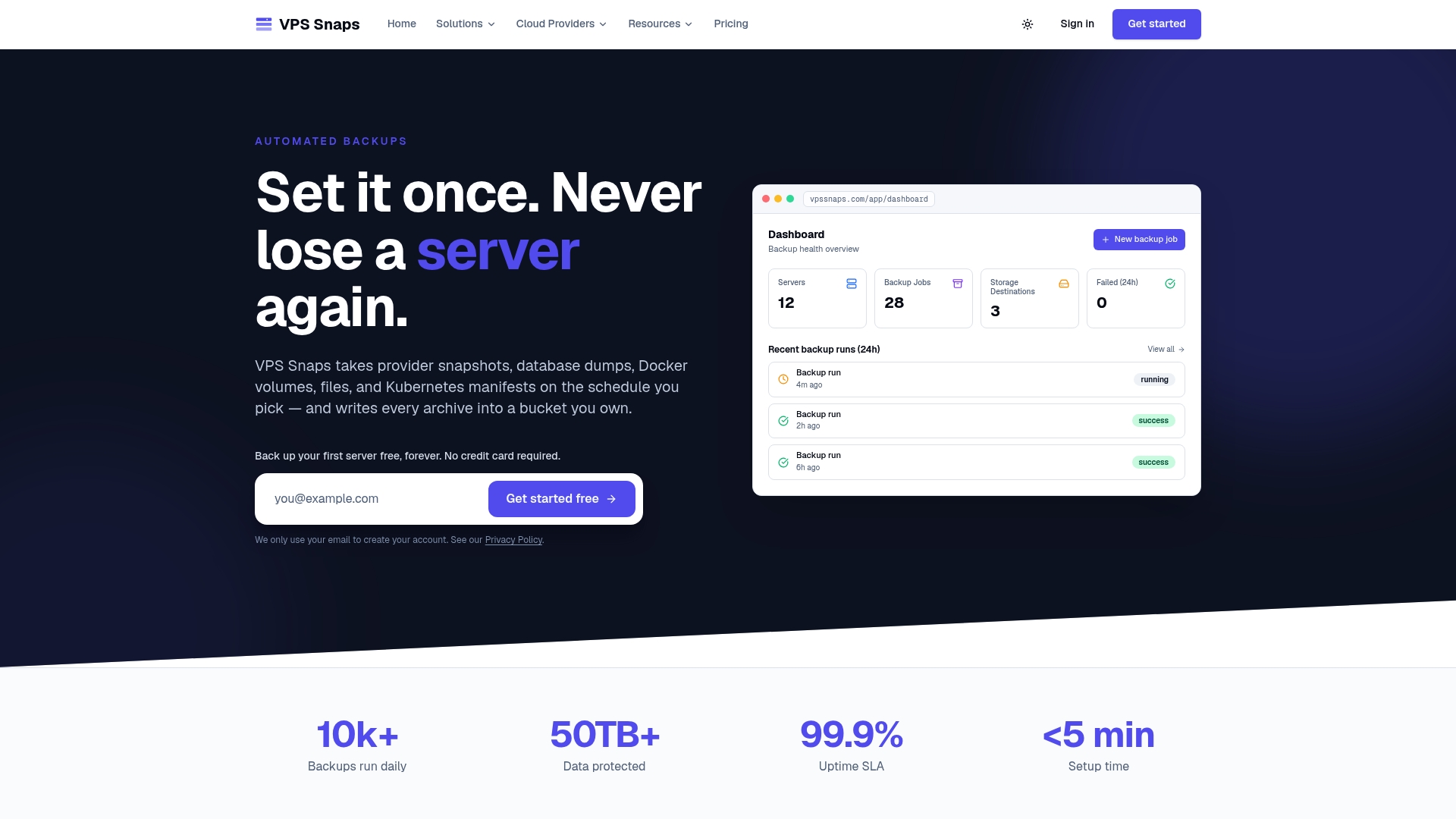
If you would rather not maintain scripts across servers, VPS Snaps automates the pipeline described above. It covers scheduled provider snapshots, database dumps, Docker volume backups, file backups, and Kubernetes manifest and volume backups, with application detection to help find what to protect. It works with seven major cloud providers, streams backup data directly into buckets you own, stores credentials encrypted, keeps detailed run logs and handles retention automatically.
Plans are listed on the pricing page: Free at $0 per month, Starter at $10 per month, Standard at $30 per month, Pro at $57 per month and Agency at $117 per month. Annual billing is $120 per year for Starter, $360 for Standard, $684 for Pro and $1,404 for Agency. You can also try setting up server backups with your AI assistant, or browse the full library of backup guides.
FAQ
How often should I automate server backups?
Match the schedule to how much data you can afford to lose. Busy databases often warrant hourly or daily dumps, while static content may need only daily or weekly runs. Take whole-server snapshots less often than data backups, and keep the database and file jobs close together in time.
Is cron good enough for automated backups?
For a single server with simple needs, yes. A systemd timer is more forgiving because it can run a missed job after a reboot. The bigger risk is not the scheduler but the missing pieces: alerting, retention, credential handling and logs. Add those before you trust it.
Are snapshots enough, or do I need file and database backups too?
Snapshots are fast for whole-machine recovery, but they usually live in the same provider account and are not always database-consistent. Pair them with database dumps and file-level backups stored in a separate bucket. That gives you both quick rollback and granular restores.
Where should automated backups be stored?
Off the server and outside the account that could be compromised. The 3-2-1 rule calls for three copies, two media types and one off-site. S3-compatible object storage with object lock enabled is a common choice for the off-site copy.
Sources
- Ubuntu Server documentation: Backups and version control
- VPS.DO: How to Automatically Backup VPS Data to the Cloud
- 1VPS: Automated VPS Backup Strategies
- Scaleway: Backup strategies for Scaleway resources
- U.S. Chamber of Commerce: How to Implement the 3-2-1 Backup Rule for Cloud Data
- CISA: Cyber Essentials Toolkit Chapter 5, Your Data
- CISA: Data Backup Options
- Sonatype: Backup the IQ Server