How to Migrate a VPS Between Providers Without Data Loss
How to Migrate a VPS Between Providers Without Data Loss

You migrate a VPS between providers by rebuilding it on the new host and moving the files, databases and configuration across, not by carrying the old server over as one object. The move goes well when you have a verified, provider-independent backup before you touch anything, and when the old server stays untouched until the new one has proven itself. Our backups stream into a storage bucket you own, so that backup is ready before the first command of the move. You can read the full playbook in our guide to migrating a server to a new cloud provider. This article covers the same ground in seven steps.
TL;DR
- Provider snapshots are built for restoring on the same platform. For a move between providers, plan on transferring files, database dumps and configuration separately.
- Inventory the old server first. Skipping that step is what turns a routine transfer into days of debugging after cutover.
- Take a backup into storage you own, and restore it somewhere disposable before you trust it.
- Lower DNS TTLs to 300 seconds at least a day ahead, freeze writes for the final sync, then switch records.
- Keep the old server running, unchanged, until the new one has passed acceptance checks and the rollback window has closed.
Table of Contents
- Why you cannot just lift a VPS and drop it somewhere else
- Step 1: Inventory the old server
- Step 2: Back up into storage you own, then prove it restores
- Step 3: Build the destination to match, not to default
- Step 4: Transfer files and databases
- Step 5: Test the new server before DNS points at it
- Step 6: Cut over with a short write freeze
- Step 7: Keep a way back, then retire the old server
- Example: a DigitalOcean Droplet moving to Hetzner
- Start the move with a backup you control
- FAQ
- Sources
Why you cannot just lift a VPS and drop it somewhere else
Most people start by looking for an export button. A provider snapshot is a restore artifact tied to the platform that made it. One analysis notes that most VPS snapshots are provider-native restore artifacts rather than portable image files. It also separates three capabilities that buyers often confuse: native snapshot restore, export within one cloud, and true portable image migration.
The details differ by provider. DigitalOcean documents a snapshot-based migration: create a Droplet snapshot, optionally move it to another region or account, and create a new Droplet from it. That works inside DigitalOcean. A separate DigitalOcean-to-Hetzner runbook states that, as of October 2026, Droplet backups and snapshots cannot be downloaded, so the recommended path is rebuilding the destination and transferring files, database and configuration separately.
Snapshots and backups do different jobs, which we explain in snapshot vs backup. The snapshot is your fast rollback on the platform it was taken on. The backup in your own bucket is what you carry between platforms. Use both.
A VPS move is also not automatically a live migration. One migration guide says plainly that no checklist can guarantee zero downtime. What you can do is shrink the outage to a short, planned freeze.

Step 1: Inventory the old server
Write a single migration note before you provision anything. A useful version holds:
- the old and new server IPs
- every domain, application and database to move
- the location of the latest backup and who restores it
- who owns DNS and when the maintenance window is
That structure follows DCHost’s migration checklist, which also points out that moving servers does not require changing your domain registrar.
Then audit the machine itself. A 12-item pre-flight list calls for inventorying installed services, custom kernel modules, cron jobs, systemd units, mounted filesystems and non-standard configuration. Add environment variables, firewall rules, SSH users and keys, SSL certificates and external integrations, as VyomCloud’s audit list does.
This is the step people skip. HostingDive’s team calls the source-stack inventory the most-skipped step and says skipping it is what produces a multi-day debugging session after cutover.
Size the destination from data, not guesswork. BuyVPS suggests capturing 30 days of CPU, RAM, disk and bandwidth usage first, and checking which operating systems the new provider supports. The destination should have equal or larger CPU, RAM, disk and bandwidth than the source.
If you are also weighing planning at the project level, this website migration checklist covers the non-server side: redirects, content and sign-off.
Step 2: Back up into storage you own, then prove it restores
Stop treating the backup as a formality. It is the only thing that survives if either server is lost mid-move. Novasean recommends an application-aware backup of files and databases, and a separate copy that stays available if either VPS is lost. For containers, back up each persistent volume and bind mount separately from the image.
This is where we do the heavy lifting for you. Our service runs database dumps, Docker volume backups, file backups, and Kubernetes manifest and volume backups, and detects applications on the server so you are not hunting for what to include. Everything streams directly into a bucket you own, credentials are stored encrypted, and run logs record each successful operation and flag failures. Because the artifacts sit in your own storage, you can restore them without relying on us, which is exactly what you want when the destination is a different provider. Our Hetzner Cloud backups page and AWS EC2 page show how the provider side works.
The 3-2-1 rule gives the target: three copies on two kinds of storage, one physically separate. During a migration that means the live source, a backup in your bucket, and a copy in another provider or region. Our 3-2-1 backup rule guide walks through it.
Then verify. A successful file copy does not prove the application can recover. Restore to an isolated test server or database, never the live site, as Bluehost advises for self-managed VPS backups. A rigorous restore test, per Space-Node’s guide:
- Fetch the backup as if the server were gone, using only the off-site copy and credentials from a password manager.
- Restore it and compare files against a sha256sum list made at backup time.
- Look for files whose numeric owner has no matching user on the new machine.
Step 3: Build the destination to match, not to default
Provision the new VPS and install the same software versions you recorded, rather than whatever the provider’s default image ships. HostingDive specifically warns to version-match the stack to the source inventory. A newer PHP, Node or database major version is the classic reason an app that worked yesterday throws errors today.
Cloud-init user data is a good way to make the build repeatable on providers that support it. An AW3 Host guide for DigitalOcean to Hetzner provisions servers from provided images with cloud-init, so the base setup is code rather than memory.
Carry over users and permissions, ~/.ssh directories and firewall rules deliberately. Hetzner’s own migration documentation has you archive users and permissions, SSH directories, firewall rules and personal data, create a dedicated migration SSH key, copy the backup directory to the new server with scp, restore the archives, and verify before deleting the old server.
Step 4: Transfer files and databases
Files first. Move them server to server with rsync or SFTP over SSH. Run a first full pass days ahead, since it is the slow one, and a short final pass at cutover.
Databases need more care. Never copy a live database’s data directory. LayerOne’s guide says to use a logical dump instead: pg_dump -Fc with pg_restore --clean --if-exists for PostgreSQL, or mysqldump --single-transaction for MySQL and MariaDB. For a busy database, plan a maintenance window or database-native replication, because one early dump will not contain the final writes.
Pick the strategy by size. One guide suggests a read-only freeze plus dump and restore for databases under 10 GB, with typical downtime of 30 to 60 minutes per 10 GB, and replication then promotion for larger or production-critical databases. For a deeper plan, see these database migration planning steps.

Do not trust “the copy finished” as proof. After import, compare row counts or checksums against the source, as HostingDive recommends. The wz-it runbook adds that rsync’s archive mode alone does not cover every metadata type, so read representative files through the application itself.
Step 5: Test the new server before DNS points at it
You can exercise the new server under your real hostname without touching DNS. Edit your local hosts file, or use the curl approach from LayerOne: curl --resolve example.com:443:NEW.SERVER.IP https://example.com/. Check sign-in, writes, uploads, background jobs, outbound email, TLS and third-party callbacks. Also confirm restarts, backups and monitoring work, which wz-it lists among its acceptance criteria.
Set your DNS up the same day. Lower the TTL (the time resolvers may cache a record) on A and AAAA records to 300 seconds at least 24 hours before cutover. The reason is clock-based: with a TTL of 86400, a resolver that looked up your domain in the morning keeps the old IP until the next morning, so the short TTL must be live one full old-TTL period before the move. The same source warns that a forgotten AAAA record keeps sending every IPv6 visitor to the old server.
Step 6: Cut over with a short write freeze
HostMyCode describes the freeze window as the short period where you stop writes on the old server, run the final sync and flip traffic. In practice:
- Put the app into maintenance or read-only mode.
- Stop queue workers and background jobs, and disable crons that send emails, charge cards or process orders.
- Run the final rsync (dry-run first if you use
--delete) and the final database dump and import. - Run your acceptance checks again.
- Change only the DNS records you need, keeping mail records intact.
A well-rehearsed version targets downtime under 15 minutes. If a write freeze is unacceptable for your application, plan replication first instead of improvising.
After 24 to 48 hours of stable operation, raise the TTL back to 3600 seconds.
Step 7: Keep a way back, then retire the old server
Define rollback before cutover: a trigger (checkout failures, persistent 5xx errors, broken logins), a timebox (for example, revert DNS if not stable in 20 minutes) and a mechanism, as in HostMyCode’s checklist. Keep the old server running for at least 48 to 72 hours after the DNS change.
There is one subtlety. If you roll back after new writes landed on the destination, reconcile them first. Novasean warns against running two writable copies against independent databases unless the app is built for it, and says to decide which server is authoritative in each phase. Changing DNS back without that decision is not a complete return path.
A decommissioned server cannot be recovered, so delete it, along with old snapshots, only after acceptance and after your retention decision. Keep taking backups on the new provider from day one, so the move does not leave a gap in your protection. Our guide to automating server backups shows the schedule side.
Example: a DigitalOcean Droplet moving to Hetzner
This is the pairing people search for most. Here is how the steps combine:
| Phase | What you do | Where it can go wrong |
|---|---|---|
| Two days before | Inventory the Droplet, record DNS TTLs, drop A and AAAA TTLs to 300 seconds | Forgetting AAAA records |
| One day before | Build the Hetzner server to match versions, first rsync, test database restore | Using the default image’s newer versions |
| Cutover | Freeze writes, final rsync, final dump, test via hosts file, switch DNS | Cron jobs still sending email from the old host |
| Week after | Watch both logs, keep the Droplet and its snapshot | Deleting the Droplet early |
If your database is a DigitalOcean managed Postgres, the documented route is replication. Hack’celeration describes running DigitalOcean’s pg_migrate with --validate first, replicating continuously, ensuring the target version is equal or newer and the extensions exist, and dropping replication slots after cutover. For a small database, dump and restore with a few minutes of downtime is fine.
Keep the Droplet and its snapshots after the move. DigitalOcean recommends retaining them so backups can show whether a problem existed before the migration.
What we have learned about moving servers
The pattern we keep coming back to is that a migration is a backup problem wearing a networking costume. The copying is mechanical. The real risk is the moment between “the old server still exists” and “the new one is proven”, and the only thing that makes that moment safe is a backup you can restore without anyone’s permission.
That is why we built our backups to stream straight into storage you own, with run logs you can read and credentials stored encrypted. When the artifacts live in your bucket, your restore does not depend on us, on the old provider, or on the new one. You can rehearse the restore on a throwaway machine, which is the check that matters most, and you can keep the same routine after the move.
Our advice: make the backup before the inventory is even finished, verify it, and keep it running on a schedule through the whole move. The migration then becomes a rebuild you can repeat, not a leap.
Scott
Start the move with a backup you control
If you are about to move a server, put the safety net in place first. VPS Snaps offers scheduled provider snapshots, database dumps, Docker volume, file and Kubernetes backups across seven cloud providers, streamed to your own buckets, with automated retention management. Plans run from a Free tier at $0 per month, then Starter at $10 per month, Standard at $30, Pro at $57 and Agency at $117, with annual billing at $120, $360, $684 and $1,404. See the details on the pricing page.
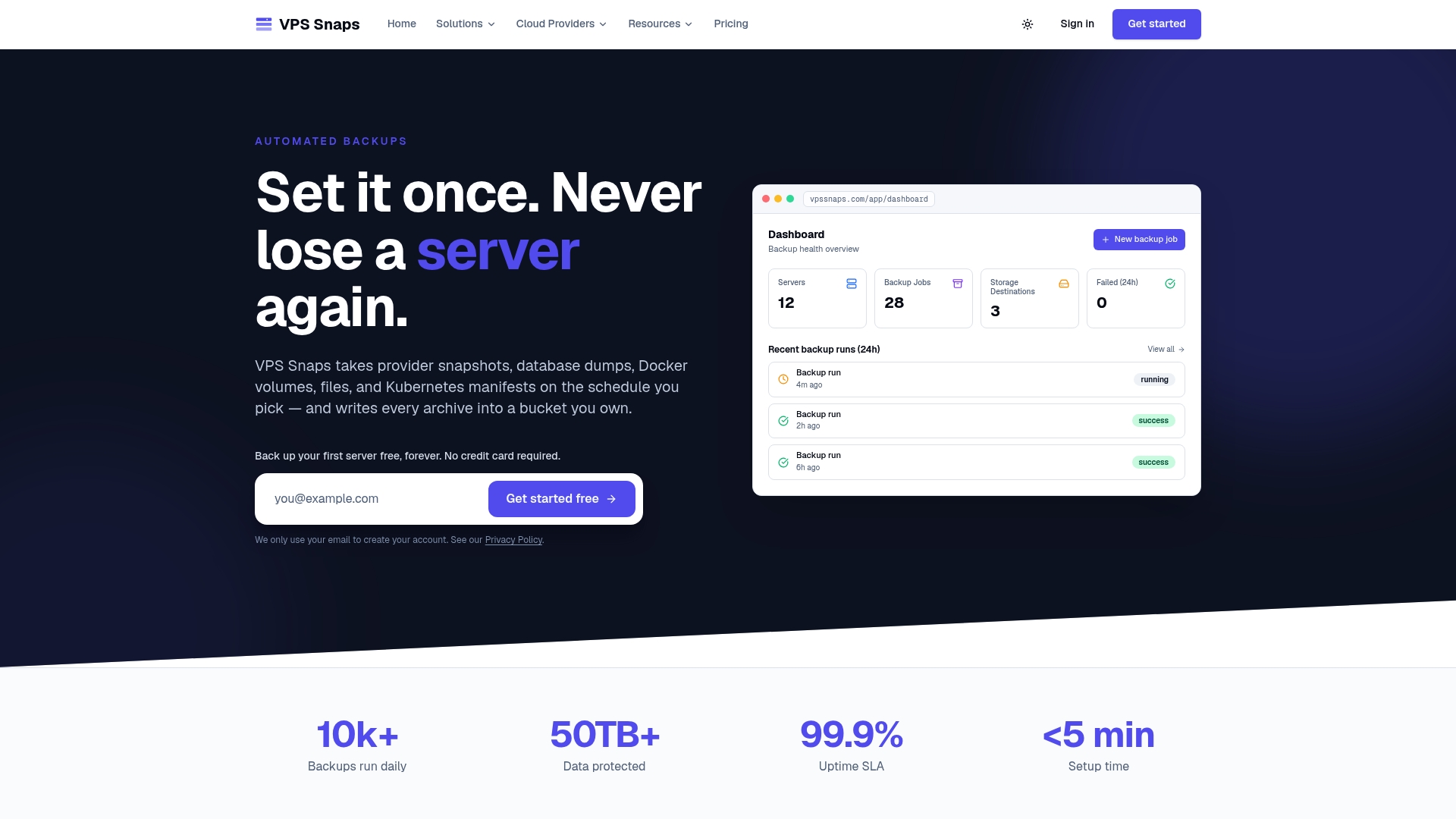
If your destination is Hetzner, our Hetzner Cloud backups page shows how scheduled snapshots work there. For teams juggling several clouds, the VPS snapshots page covers the approach.
FAQ
Can I move a VPS snapshot straight to another provider?
Usually not. Snapshots are generally restore artifacts for the platform that created them, and DigitalOcean’s support documentation says you cannot currently download backups or snapshots, though it can import custom images in several formats. For a move, rebuild the destination and transfer files, databases and configuration.
How long should I keep the old server after migrating?
At least 48 to 72 hours after the DNS change, and longer if you can afford it. HostMyCode’s checklist uses that range. Shut it down only after acceptance checks pass and you have decided how to handle retention.
Do I need to change my domain registrar?
No. Moving servers does not require changing your registrar. You need access to the old server, the new server and DNS management, and you update only the records that point at the new IP.
How much downtime should I expect?
It depends on the database. For databases under 10 GB, a freeze and dump-restore typically costs 30 to 60 minutes per 10 GB. With replication, cutover can drop to under 60 seconds once the replica is synchronized.
Sources
- How to Migrate a VPS Between Providers Without Downtime
- VPS and VDS migration: data, DNS and rollback checklist (DCHost)
- Switching From DigitalOcean to a New VPS: Migration Guide
- VPS Providers Compared: What to Check Before You Buy
- Switching Cloud VPS Providers: A Migration Difficulty Guide
- How to move a VPS to another provider (Novasean)
- Back up a VPS yourself (WeaselCloud)
- Bluehost: schedule and verify self-managed VPS backups
- How to Test That Your VPS Backup Actually Restores
- Migrate data from another provider to Hetzner
- Migrate from DigitalOcean to Hetzner Cloud (AW3 Host)
- Migrate an existing VPS (LayerOne Docs)
- DigitalOcean Droplet to Hetzner: Migration with rsync
- How to Migrate Droplets Using DigitalOcean Snapshots
- DigitalOcean Alternatives: 6 Providers and How to Migrate
- Can You Move a VPS Snapshot to Another Provider?
- Server Migration Checklist: Move With Near-Zero Downtime
- VPS migration checklist: move a website with near-zero downtime
- Website Migration Checklist: A Simple, Proven Plan
- Database Migration to the Cloud: A Step-by-Step Plan