Restore Ready SQL Server Backups: Copyable PowerShell and sqlcmd
Restore Ready SQL Server Backups: Copyable PowerShell and sqlcmd

Use PowerShell with the dbatools module when you manage multiple instances, SQL Server Agent or maintenance plans for a single full instance, and Task Scheduler with sqlcmd if you run SQL Server Express. Add BACKUP TO URL when you need offsite object storage, but plan for a server credential and stripe limits. None of it counts as a backup strategy until you test restores and back up msdb.
TL;DR:
- Backups should be regularly restored and tested to ensure recoverability, with msdb backed up after job or plan changes to retain history.
- PowerShell with dbatools automates multi-server backups, including verification and logging, while credentials must be stored securely outside scripts.
- SQL Server Agent or maintenance plans handle scheduled backups on standalone instances, but tasks like encrypting files and checksums improve reliability.
- SQL Server 2022 supports direct backup to URL for S3 and Azure Blob storage, with stripe limits, size caps, and cleanup procedures critical for performance and retention.
- For SQL Server Express, use Task Scheduler with
sqlcmdor stored procedures, ensuring the backup account has permissions and old files are regularly cleaned up.
Table of Contents
- Automating backups with PowerShell and dbatools
- SQL Server Agent and maintenance plans for scheduled backups
- Backing up SQL Server Express with Task Scheduler and sqlcmd
- Backup to URL for S3-compatible and Azure Blob storage
- Verification, restore tests, and protecting msdb
- A practical checklist and two ready patterns
- What DBAs get wrong about backup SLAs
- How VPS Snaps automates SQL Server backup workflows
- Where to read the underlying Microsoft documentation
- Sources
- FAQ
Automating backups with PowerShell and dbatools
The dbatools and SqlServer PowerShell modules turn backup automation into a scriptable, auditable process instead of a set of manual clicks. Backup-DbaDatabase Handles the backup itself, and Get-SqlBackupHistory lets you pull a full record of what ran and when, which matters once you are managing more than one server by hand.
A typical script pattern looks like this: enumerate the target databases, decide whether each needs a full, differential, or log backup based on the last backup type, build a timestamped file name, run the backup, then verify success and write the result to a log.
- Enumerate databases and skip system databases you do not want backed up on the same schedule.
- Decide backup type from recovery model and time since last full backup.
- Name files with instance, database, and timestamp so nothing overwrites silently.
- Verify the backup completed and log the outcome, including failures.
Keep credentials out of the script body. Store SQL logins or storage keys in the Windows Credential Manager or a secrets vault rather than as plaintext variables, and pull them at runtime.
Pro Tip: Route script failures into an email or webhook alert immediately rather than relying on someone to check a log file the next morning.
SQL Server Agent and maintenance plans for scheduled backups
For a standalone instance running Standard or Enterprise edition, SQL Server Agent or a maintenance plan is usually the simplest place to start. You get built in scheduling, retry logic, and history tracking without writing a script from scratch. Reach for PowerShell instead when you are coordinating backups across many servers or need logic that a maintenance plan wizard cannot express.
A workable job structure looks like this:
- A full backup job running nightly or weekly depending on database size and change rate.
- Differential backup jobs filling the gaps between full backups, often every few hours.
- Transaction log backup jobs running every 5 to 15 minutes for databases in full recovery model.
- A cleanup job that deletes backup files past your retention window.
Turn on backup checksums and consider WITH VERIFY so corrupted pages get caught early rather than during an actual restore. Compression cuts storage and transfer time; encryption protects the file itself if it leaves a secured network. Since Agent job definitions and maintenance plan metadata live in msdb, back it up too, and confirm each database’s recovery model matches how often you need to recover data.
Backing up SQL Server Express with Task Scheduler and sqlcmd
SQL Server Express does not include SQL Server Agent, so scheduling depends on Windows Task Scheduler paired with sqlcmd or a PowerShell wrapper. The common pattern is a stored procedure such as sp_BackupDatabases that loops through databases and issues BACKUP DATABASE statements, called from a batch file that Task Scheduler triggers on a fixed interval.
- Create the stored procedure once, then call it with a single
sqlcmdline from the batch file. - An equivalent approach skips the stored procedure and runs
BACKUP DATABASEstatements directly from a.sqlfile passed tosqlcmd. - Run the scheduled task under an account with backup permissions, and if you use SQL authentication, keep the password out of the visible command line.
- Add a cleanup step in the same batch file so old backup files do not fill the disk over time.
Backup to URL for S3-compatible and Azure Blob storage
SQL Server 2022 and later supports BACKUP TO URL for S3-compatible object storage directly, which means you can send backups straight to a bucket without staging them on local disk first. It requires a server-level credential holding the access key and secret key for the storage endpoint, and it supports striping across up to 64 URLs for large databases.
- Create the server credential before the first backup job, scoped to the storage endpoint’s identity.
- Keep each stripe file under 100 GB for S3-compatible targets to avoid performance and reliability issues.
- Object Lock style delete retention is not supported for S3-compatible backups, so build retention into your own cleanup process instead.
- For Azure Blob, block blobs are the recommended target and support striping past the block limit of a single block blob.
The URL string itself is capped at 259 bytes, and a clock skew of more than 15 minutes between the SQL Server host and the storage service can trigger a signature error that looks unrelated to time at all. On Linux, self-signed certificates need to be copied into the host’s certificate path before backups to those endpoints will validate.
Verification, restore tests, and protecting msdb
Automation only proves a backup ran, not that it can be restored. Build these habits into the schedule itself:
- Restore production backups to a test server on a recurring basis and run
DBCC CHECKDBagainst the restored copy to confirm the data is intact, per Microsoft’s own restore guidance. - When restoring after a failure, take a tail-log backup first with
NO_TRUNCATE, and useNORECOVERYon intermediate restore steps so you can keep applying later logs. - Back up msdb any time you add or change a job or maintenance plan, since it holds the backup and restore history SQL Server relies on.
- Centralize backup history across every method in use with Get-SqlBackupHistory, which returns SMO backup set objects you can filter by date range or backup type.
Pro Tip: Schedule the restore test itself as an automated job, not a manual task someone remembers to run once a quarter.
A practical checklist and two ready patterns
Before you call a backup process finished, check it against this list:
- Full, differential, and log backups are scheduled to match each database’s recovery model.
- A restore test runs on a fixed cadence, not only after an incident.
- Credentials and storage keys are stored securely, never hardcoded.
- Every backup job logs success or failure somewhere you actually look.
- Retention and cleanup run automatically so disks and buckets do not fill up.
A minimal dbatools pattern: loop through target instances, call Backup-DbaDatabase with the appropriate backup type, then call Get-SqlBackupHistory afterward to confirm the job landed in history before moving to the next server.
A minimal sqlcmd pattern for Express: a batch file calls sqlcmd -S .\SQLEXPRESS -Q "EXEC sp_BackupDatabases", and Task Scheduler triggers that batch file nightly under a service account with backup rights.
A backup process that nobody has restored is a hope, not a plan.
Teams that would rather skip maintaining these scripts across servers often move the same checklist into a managed platform like VPS Snaps, which handles scheduling, credential storage, and logging as a service.
What DBAs get wrong about backup SLAs

Most teams overinvest in backup frequency and underinvest in restore testing. A weekly full restore with daily automated integrity checks catches more real problems than a tighter backup schedule ever will, because the failure mode that actually hurts is discovering a corrupt or incomplete backup during an outage.
Move from scripts to a managed service once you are maintaining automation across more servers than one person can reasonably watch, or once nobody on the team can explain what happens if a script silently stops running.
— Scott
How VPS Snaps automates SQL Server backup workflows
Maintaining backup scripts across a growing number of servers means maintaining the scripts, not just the backups. VPS Snaps automates provider snapshots and streams backup data directly into storage buckets you own, so there is no proprietary format standing between you and a restore.
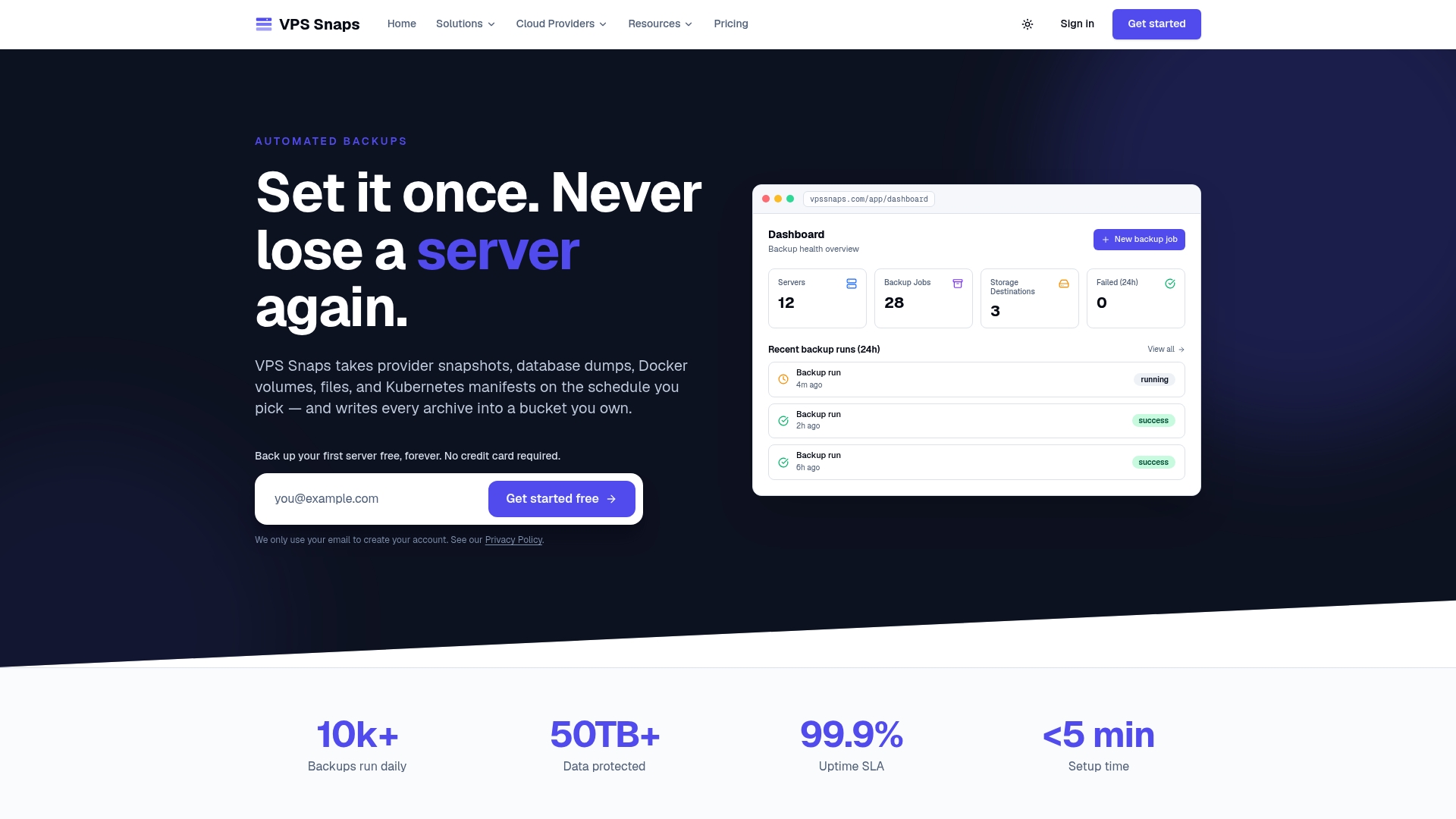
- Encrypted credential storage replaces plaintext keys sitting in a script.
- Detailed run logs track every backup attempt and flag failures automatically.
- Database dumps, file backups, and snapshots run from one scheduled setup across seven cloud providers.
Compare plans, including the Starter plan at $10 per month, against the time your team currently spends maintaining scripts.
Where to read the underlying Microsoft documentation
The backup-to-URL behavior, stripe limits, and troubleshooting notes above come from Microsoft’s own S3-compatible backup to URL guidance, the Express scheduling walkthrough, and the checksum and restore verification docs, and for retention planning during a ransomware scenario, the ransomware protection playbook is worth a read.
Sources
- SQL Server backup to URL for S3-compatible object storage
- Back up and restore of SQL Server databases
- SQL Server back up to URL for S3-compatible object storage best practices and troubleshooting
FAQ
How do you automate backups in SQL Server?
Use SQL Server Agent or a maintenance plan for a single instance, or a PowerShell script with the dbatools module when you manage several instances at once. For SQL Server Express, which lacks Agent, pair a stored procedure or BACKUP DATABASE script with Windows Task Scheduler.
What is the best backup strategy for SQL Server?
A solid strategy combines full, differential, and transaction log backups matched to each database’s recovery model, plus scheduled restore tests and DBCC CHECKDB to confirm the backups actually work. Retention cleanup and msdb backups after job changes round out a strategy that holds up during a real recovery.
What is the best backup software for SQL Server?
The right tool depends on scale: native Agent jobs or maintenance plans suit a single instance, dbatools PowerShell scripts suit multi-server environments, and a managed platform like VPS Snaps suits teams that want automated scheduling and logging without maintaining scripts themselves. There is no single tool that fits every SQL Server edition and environment size.
How do you automate MySQL backups?
MySQL backup automation typically uses mysqldump or a physical backup tool scheduled through cron on Linux or Task Scheduler on Windows, following a pattern similar to SQL Server’s script-based approach. Some teams instead route MySQL dumps into a managed backup service alongside their other database and server backups to avoid maintaining separate scheduling scripts.
Why do backups to object storage sometimes fail without a clear error?
A clock skew of more than 15 minutes between the SQL Server host and the storage endpoint can produce a signature error that looks unrelated to timing. URL length past 259 bytes and missing certificates on Linux hosts are two other common causes worth checking first.