DigitalOcean Snapshot Automation: Schedules, doctl and Retention
DigitalOcean Snapshot Automation: Schedules, doctl and Retention

To automate DigitalOcean snapshots, you have three routes. Turn on built-in Droplet Backups for a fixed daily or weekly schedule. Script doctl or the API from cron or CI for custom schedules and volume snapshots. Or use a managed tool that creates the snapshots, prunes old ones and logs every run for you. The right choice depends on how often you need restore points, whether volumes matter, and how much script upkeep you want to own.
This guide explains the difference between backups and snapshots, shows how each automation route works, covers retention and cost, and ends with the gap most teams miss: a copy that lives outside the provider account.
TL;DR
- DigitalOcean Backups are automatic but apply only to Droplets. Snapshots are manual by default but cover Droplets and volumes, and you choose when they run.
- Custom snapshot schedules mean
doctlor the API plus cron or CI, and a second script to delete old snapshots. Without that cleanup, storage costs creep up. - Backups cost a percentage of the Droplet price. Snapshots are billed by stored data, so retention is your cost control.
- Keep one copy outside the account that holds the servers. DigitalOcean itself suggests a backup to another provider for redundancy.
- VPS Snaps schedules provider snapshots through the API, applies retention and keeps run logs, so you don’t maintain the scripts.
Table of Contents
- Backups vs. snapshots on DigitalOcean
- What each option costs in the US
- Three ways to automate snapshots
- Retention: how many snapshots are enough
- Restoring and moving snapshots
- The gap snapshots do not close
- Which approach fits which workload
- Our perspective
- Automate it with VPS Snaps
- FAQ
- Sources
Backups vs. snapshots on DigitalOcean
DigitalOcean uses the two words for different things, and mixing them up is the most common reason a restore plan fails.
Backups are images of a Droplet’s disk that DigitalOcean creates automatically on a daily or weekly schedule once you enable the feature. Snapshots are images you create yourself, from the control panel, doctl or the API, and they stay until you delete them (ServerPilot’s summary of DigitalOcean’s terminology puts it in exactly those terms).
| Backups | Snapshots | |
|---|---|---|
| Who triggers them | DigitalOcean, on a window it manages | You, by hand or through automation |
| What they cover | Droplets only | Droplets and block storage volumes |
| Schedule | Daily or weekly plan | Whenever you decide |
| Retention | Rolling, managed by the plan | Until you delete them |
| Billing | Percentage of the Droplet price | Per GB of stored data |
Two details matter in practice. First, Backups are only for Droplets, and a Droplet image does not include attached volumes, so a database living on a volume is not protected by Droplet Backups (How-To Geek). Second, the backup window is a span of hours rather than an exact time, so you cannot say “restore point at 02:00 sharp.” If you need a restore point immediately before a deploy or migration, you need a snapshot.
We cover the take-and-restore workflow in more detail in our guide to DigitalOcean Droplet snapshots.
What each option costs in the US
Prices change, so check DigitalOcean’s pricing page before you commit. As of 2026, a third-party pricing breakdown lists weekly backups at 20% of the Droplet price and daily backups at 30%, plus usage-based backup plans starting at $0.01 per restorable GiB per month. The same source lists Droplet snapshots at $0.06 per GB per month (DiyAI pricing breakdown).
A worked example using those figures: a $12 Droplet becomes $14.40 a month with weekly backups or $15.60 with daily backups. A snapshot of a 50 GB disk that holds 30 GB of data would cost on the order of $1.80 a month at $0.06 per GB. Keep seven of them and you are near $12.60 a month, which is why retention matters more than the schedule itself.
The pattern to take away:
- Backups are predictable. The price follows the Droplet size, whatever you store.
- Snapshots scale with what you keep. A nightly job with no cleanup grows the bill every month.
- Volumes are billed separately from Droplets, and so are their snapshots.
Three ways to automate snapshots
Option 1: Enable Droplet Backups
The lowest-effort route. Enable backups on the Droplet, pick the window, and DigitalOcean handles the rest. It suits a single web server where a daily or weekly restore point is enough and nothing important sits on a volume.
What you give up: control over timing, coverage of volumes, and any record of when a run succeeded or failed beyond what the panel shows. DigitalOcean’s own guidance, as relayed by How-To Geek, is that business-critical workloads call for periodic snapshots or a custom backup system, and for redundancy a manual backup to another cloud provider (How-To Geek).
Option 2: Script it with doctl and cron
This is the route most engineers try first. Install doctl, authenticate with a personal access token scoped to the minimum you need, and call the snapshot command on a schedule. A typical example creates a dated snapshot of a Droplet with doctl compute droplet snapshot, then runs from a daily cron entry, with output redirected to a log file so failures can be traced (example walkthrough).
A minimal pattern looks like this:
- Create the snapshot with a name that carries the Droplet name and date.
- List snapshots for that Droplet, sorted by creation time.
- Delete everything beyond the newest N.
- Write the result somewhere you will actually read it.
- Alert on a non-zero exit code.
Steps 3 to 5 are where scripts rot. Retention is the part that DigitalOcean’s native snapshotting leaves to you, so a second script is needed to clean up old snapshots, as that same walkthrough notes. A cleanup bug that deletes too much is far worse than one that deletes too little, so test it against a throwaway Droplet first.
For volumes, the same approach works against the volume snapshot endpoints, with doctl compute volume snapshot. Run it from a small management Droplet or a CI job rather than from the server you are protecting, so a compromised or dead server does not take the schedule with it.
Option 3: CI services or a managed tool
Some teams run the same API calls from scheduled CI pipelines, which removes the need for a management server but still leaves you owning the retention logic, secrets and alerting. A managed tool moves all of that out of your repo.
This is the gap VPS Snaps fills. It creates Droplet snapshots on a schedule through the DigitalOcean API, manages retention automatically, stores your credentials encrypted, and keeps run logs that record every successful run and flag failures. The snapshot itself stays in your own DigitalOcean account, so you can restore it from DigitalOcean directly without any proprietary restore tool.
Retention: how many snapshots are enough
There is no universal number, but a workable default for a production Droplet is a tiered set: a handful of dailies, a few weeklies and one monthly. Snapshots are full disk images, so more restore points means a bigger bill. Decide using two questions:
- How much data can you afford to lose? That sets the interval. If losing a day of orders is unacceptable, a daily snapshot is not enough on its own, and you need database-level dumps between snapshots.
- How far back might you need to go? Slow-burning problems such as silent corruption or a bad migration discovered a week later need older points than a crash does.
Write the policy down and automate it. Our guide on how long to keep backups walks through setting one, and the same logic applies whichever tool runs the schedule.
Snapshot before you change things
Automation covers the routine. Add a manual snapshot, or a call to your script, to the start of any risky operation: kernel upgrades, major database version changes, firewall rewrites. If your deploy pipeline already calls the API, add a snapshot step before the deploy and a cleanup step after.
Consistency: disks are not databases
A snapshot of a running Droplet is taken from the disk, not from the application’s memory. For most web workloads that is fine, since journaling filesystems recover cleanly. For busy databases it is better to take a logical dump too, so you have a copy you can restore at the table level. Our guide to backing up PostgreSQL and MySQL to S3 covers that layer.

Restoring and moving snapshots
Restoring means creating a new Droplet from the snapshot image or rebuilding an existing one from it. Pick the same or a larger size, and keep the region in mind: a snapshot is created in a region, and moving it elsewhere is a separate transfer step. For volumes, you create a new volume from the snapshot and attach it.
Two practical habits make restores less painful:
- Test a restore on a schedule. A backup you have never restored is a hope, not a plan. Once a quarter, create a Droplet from your latest snapshot and confirm the application starts.
- Document the order. Note which volumes attach where, the firewall rules, the floating IP and the DNS changes. A snapshot restores a disk, not your network configuration around it.
Cross-account moves are a common stumbling block, for example a prod team and a staging team that each have their own DigitalOcean team. Check DigitalOcean’s current documentation for snapshot transfer between accounts and teams before you design around it, because it is easier to confirm up front than to discover during an incident.
The gap snapshots do not close
Every DigitalOcean snapshot and backup lives inside DigitalOcean. That protects you from a deleted file or a botched upgrade. It does not protect you from a compromised account token, an accidental team-level deletion, a billing lock or a regional problem.
The usual answer is the 3-2-1 idea: multiple copies, on different media, with one off-site. In this context, that means at least one copy outside the account that holds the servers. Two common ways to do it:
- File and database backups into object storage you own. An S3-compatible bucket, whether DigitalOcean Spaces in a separate account or another provider, holds data that you can read without DigitalOcean’s tooling. See our walkthrough on using DigitalOcean Spaces for backups.
- Ransomware-aware storage settings. Keep credentials for backup storage separate from the server, and use versioning or object lock where the storage supports it. Our guide on protecting backups from ransomware lists the controls.
If you also run servers on other providers, the same pattern applies there, for example Vultr snapshots or Hetzner cloud backups. One tool and one log across all of them beats three sets of cron jobs.
Which approach fits which workload
| Workload | Good fit | Why |
|---|---|---|
| Single small site, no volumes | Droplet Backups | Zero upkeep, predictable price |
| App with a database on a volume | Scheduled volume and Droplet snapshots plus database dumps | Backups do not cover volumes |
| Production SaaS, tight recovery needs | Frequent snapshots, tiered retention, off-account copy | Restore points close to the incident, plus protection from account loss |
| Agency or team with many servers | Managed automation with central logs | Scripts per server do not scale, and audits need evidence |
| Docker or Kubernetes hosts | Snapshots plus volume and manifest backups | Container state lives in volumes and cluster config |
Our perspective
We built VPS Snaps because the typical DigitalOcean setup we see is a cron job somebody wrote two years ago. It creates snapshots, nobody reads its output, and nothing checks that old snapshots are being removed. It works until the day it silently stops.
Our view is that a backup job has three parts: make the copy, enforce retention, and prove it happened. The first is easy and the other two are what get skipped. That is why we log every run, flag failures, and keep credentials encrypted rather than sitting in a crontab.
We also think you should own your data. Snapshots created through the provider API stay in your provider account, and file or database backups stream straight into buckets you own. You can restore without us in the loop, and that is a deliberate design choice: backup software should not become a second thing you depend on during an outage.
The simplest test of any backup plan: could someone new on your team restore production from it at 3 a.m. using only your documentation? If not, automate and document until the answer is yes.
Scott
Automate it with VPS Snaps
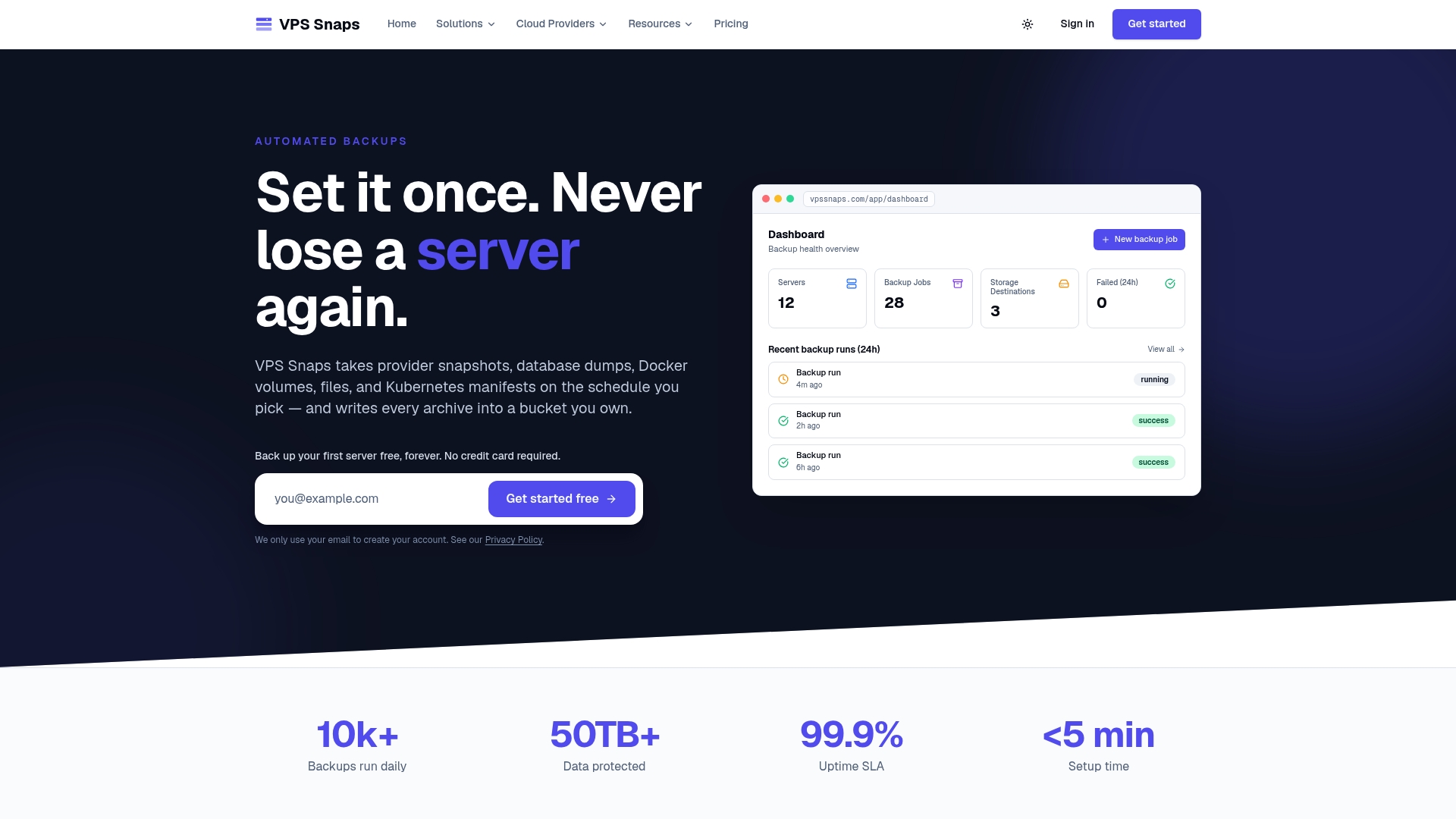
If you would rather not maintain snapshot scripts, VPS Snaps connects to your DigitalOcean account through the API, schedules Droplet snapshots, applies retention and logs each run. It also handles database dumps, Docker volumes, files and Kubernetes backups into your own S3-compatible buckets, across seven cloud providers.
Plans on the pricing page run from a free tier at $0 per month, then Starter at $10 per month, Standard at $30, Pro at $57 and Agency at $117, with annual billing at $120, $360, $684 and $1,404 respectively. You can also read the DigitalOcean setup guide before you sign up.
FAQ
Are DigitalOcean backups enough on their own?
For a simple Droplet with no attached volumes, they can be a reasonable baseline. They only cover Droplets, though, and DigitalOcean suggests periodic snapshots or a custom backup system for business-critical workloads, and a copy at another provider for redundancy (How-To Geek).
Can I schedule DigitalOcean snapshots without writing scripts?
Yes. You can use a managed tool that calls the DigitalOcean API for you. VPS Snaps, for example, schedules the snapshots, prunes old ones by your retention rules and records each run in a log. Otherwise you need doctl or the API plus cron or CI.
How do I stop snapshot costs from growing?
Automate deletion, not just creation. Snapshots are billed on stored data, and a 2026 pricing breakdown lists them at $0.06 per GB per month (DiyAI). A tiered policy, such as a few dailies, a few weeklies and one monthly, keeps the count and the bill predictable.
Do snapshots include my volumes?
Not when you snapshot a Droplet. A Droplet image does not include attached volumes, so snapshot each volume separately, or back up the data on it with file and database backups (How-To Geek).
Sources
- How to Use DigitalOcean Backups and Snapshots, How-To Geek
- DigitalOcean Pricing 2026: Droplet Costs, Backups and Hidden Fees, DiyAI
- Automate DigitalOcean Droplet Snapshots and Backup Policies, ADHDecode
- Back up and restore servers on DigitalOcean, ServerPilot Docs