Ship Verified Cloudflare R2 Backups in 4 Steps for Developers
Ship Verified Cloudflare R2 Backups in 4 Steps for Developers

Yes, Cloudflare R2 is a solid backup target: it’s S3-compatible, has no egress fees, and works with existing tooling like aws-cli, boto3, and rclone. The reliable pattern is automated dump, compress or stream, multipart upload, verify, then apply lifecycle rules. You need three things before you start: an R2 bucket with a scoped API token, an automated runner, and a verification step. Skip verification or lifecycle management, and you’ll end up with silent failures or a storage bill that never stops growing.
TL;DR:
- Automated verification using checksum manifests and periodic restore tests is essential to ensure backups are reliable and not just assumed to be correct.
- Object lifecycle rules must be explicitly set to delete old backups, as default TTL only prevents acceptance, not storage growth.
- Using a scoped API token and storing credentials securely minimizes security risks, while rotating keys quarterly is a best practice.
- Choosing between full, incremental, or streaming backups depends on dataset size and type, with streaming ideal for large media files and scheduled dumps best for relational databases.
- GitHub Actions offers a low-cost, zero-infrastructure automation method, but regular verification and retention management are crucial for long-term backup integrity.
Table of Contents
- Setting Up Cloudflare R2 Backup Prerequisites
- Full, Incremental, or Streaming: Which Backup Pattern Fits?
- What’s the Best Way to Automate R2 Backups?
- How Do You Verify a Backup Actually Restores?
- Managing Retention: TTL vs Object Lifecycle Rules
- Securing R2 Credentials and Backup Contents
- A Minimal Runnable Backup Architecture
- Why Verification Beats Trust in Backup Systems
- Managed Backups That Stream Straight to Your Own Bucket
- Sources
- FAQ
Setting Up Cloudflare R2 Backup Prerequisites
Before writing a single line of backup code, create your bucket in the Cloudflare dashboard or via wrangler. Note the account ID shown in your dashboard URL. You’ll need it for every S3-compatible tool, since R2 endpoints follow the format https://<account_id>.r2.cloudflarestorage.com, and a missing account ID is the single most common reason authentication fails on a first attempt.
Next, generate an API token scoped narrowly:
- Create a token with Object Read & Write permissions limited to the specific backup bucket, not your whole account.
- Store the access key and secret in your CI provider’s secrets manager, never in a repo file.
- Pick your client:
aws-clifor quick scripting,boto3for Python pipelines,rclonefor folder syncs. - Choose a runner: GitHub Actions for zero-infrastructure scheduling, or a Docker container if you’re already self-hosting.
Estimate your first sync size before you commit to a schedule. A 50GB database dump on a residential upload connection behaves very differently than the same dump running from a data center runner with gigabit bandwidth, so plan your first full backup outside business hours regardless of where it runs.
Full, Incremental, or Streaming: Which Backup Pattern Fits?
A full backup dumps everything every time. Simple to reason about, expensive to store repeatedly, and slow for large datasets. Incremental strategies only capture what changed since the last run, which cuts storage and transfer time dramatically once your dataset passes a few gigabytes. Streaming uploads skip the local disk step entirely, piping data straight from source to R2 as it’s generated, which matters when you’re backing up media libraries or logs that don’t fit comfortably on the runner’s disk.
Streaming makes the most sense for large binary sets: video archives, image libraries, or anything where a database dump command doesn’t apply. Regular scheduled dumps still win for relational databases, where tools like pg_dump or mysqldump produce a clean, restorable snapshot in one pass.
A few practical habits keep this from turning into a mess:
- Use multipart uploads for anything over a few hundred megabytes to avoid single-request timeouts.
- Name objects with a timestamp and a content hash, like
backup-2026-03-12-a1b2c3.tar.gz, so partial or duplicate uploads are obvious at a glance. - Never overwrite an existing backup object; append new versions instead so a failed run doesn’t erase a good one.
Pro Tip: Treat every backup filename as a contract. If your naming pattern can’t tell you the exact date and content hash at a glance, your restore process will waste time guessing which file is actually good.
What’s the Best Way to Automate R2 Backups?
Automation is where most backup setups quietly fail, usually because a script that worked once on a laptop was never wired into anything that runs unattended. Here’s how to fix that without building a full ops team around it.
- Use GitHub Actions for zero-infrastructure scheduling. Store
R2_ACCESS_KEY_IDandR2_SECRET_ACCESS_KEYas repo secrets, and trigger adump → compress → uploadjob on a cron schedule. This works well within GitHub’s free minutes for most small-to-medium projects, though private repos on free tiers do have monthly minute caps worth checking against your run frequency. - Use Docker with cron or systemd timers for self-hosted runners, or a PaaS scheduler like Railway’s cron jobs if your app already lives there.
- Set jobs to run once and exit rather than staying resident, since overlapping runs on the same backup target can cause write contention or duplicate uploads. Idempotent, one-shot job design avoids this entirely.
- Schedule by data volatility. Databases usually need one daily dump at low-traffic hours. High-change logs or event streams benefit from hourly incremental uploads instead.
Build in retries with backoff for network hiccups, since a single failed multipart chunk shouldn’t force a full restart of the whole job.
How Do You Verify a Backup Actually Restores?
An unverified backup is a guess, not a safeguard. The fix is cheap: compute a sha256 checksum of your archive before upload, then store it as a small manifest file, something like backup-2026-03-12.manifest.json with filenames, sizes, and hashes included.
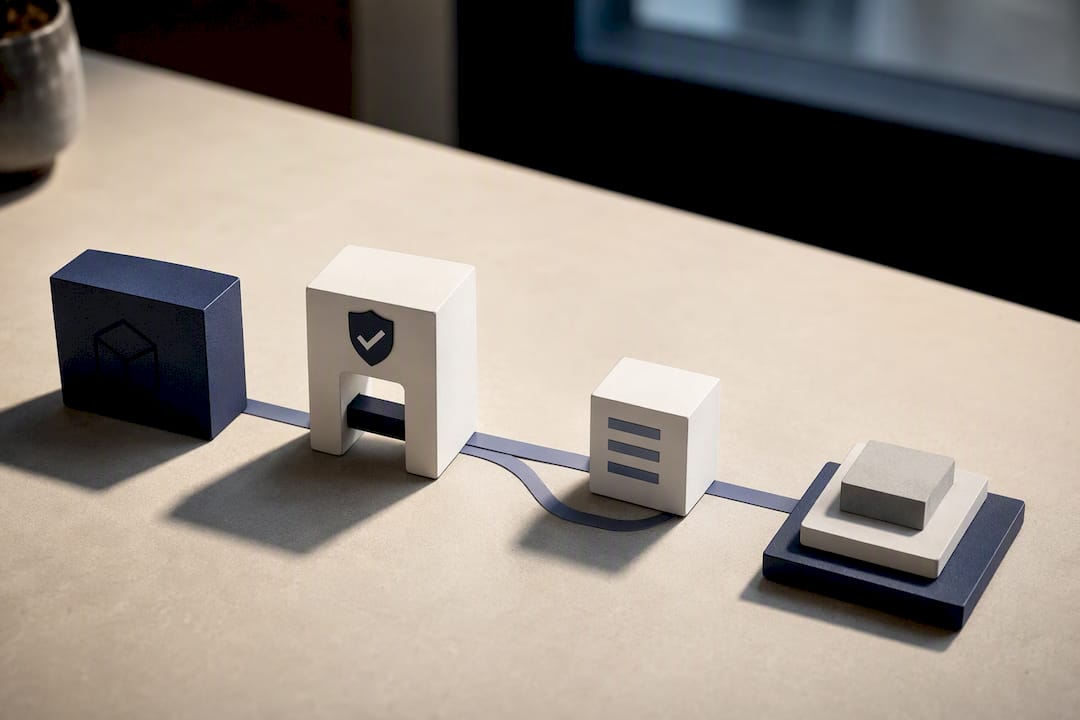
After the upload completes, re-download the archive or its manifest and compare hashes automatically inside the same pipeline run. This one step catches truncated uploads and silent corruption that a “upload succeeded” status code will never show you.
Checksum comparison paired with scheduled test restores is what actually catches the failures that matter, and teams that skip this step tend to discover their backups were broken only when they need them most.
- Run a full test restore monthly, not just a checksum check, since a hash can match while the restore logic itself is broken.
- Keep verification results in your run logs, tagged with pass or fail status and timestamps.
- Alert immediately on any checksum mismatch or failed restore, via email, Slack, or a webhook.
- Store manifests separately from the archive so you can verify without re-downloading a multi-gigabyte file every time.
Backups that are never tested are backups you’re hoping work, not backups you know work.
Managing Retention: TTL vs Object Lifecycle Rules
TTL and lifecycle rules solve different problems, and mixing them up is a common mistake. Cloudflare’s Sandbox SDK documents a default TTL of 259,200 seconds, three days, but that TTL only controls whether a backup is accepted at restore time. It does not delete anything. If you rely on TTL alone to manage storage growth, your bucket keeps every backup forever and your bill keeps climbing.
Actual deletion requires R2 object lifecycle rules scoped to a prefix, such as backups/, configured to expire objects older than a set number of days.
- Set lifecycle rules per prefix so different backup types (daily database dumps vs weekly media archives) can expire on different schedules.
- Use date-prefixed object names to make lifecycle rules predictable and easy to audit.
- Leave a short overlap window, a few extra days past your minimum retention, before lifecycle deletion kicks in, so a delayed verification check never runs against an already-deleted object.
- Document your retention scheme once, in one place, so nobody accidentally shortens it during a cost-cutting pass.
Securing R2 Credentials and Backup Contents
A backup system that leaks credentials is worse than no backup system, since now there’s a second thing to worry about. Scope every API token to a single bucket with Object Read & Write only, and nothing broader. Rotate those tokens on a schedule, quarterly is reasonable for most teams, rather than leaving one token active indefinitely.
- Store access keys in your CI provider’s secret store, a vault service, or a managed secrets manager. Never commit them to source control, even in a private repo.
- Consider client-side encryption or password-protected archives for backups containing sensitive data, since R2 encrypts data at rest but that doesn’t protect against a leaked access key.
- Document your key recovery process before you need it, not during an incident.
- Keep detailed run logs so a failed job or an unexpected access pattern shows up immediately rather than three weeks later.
Pro Tip: A rotation schedule you never follow is worse than no schedule at all, because it gives you false confidence. Put the rotation date on a calendar with an actual reminder, not just in a wiki page nobody reads.
A Minimal Runnable Backup Architecture
Here’s a reference setup you can adapt in an afternoon rather than a sprint. The flow: your source database or file directory feeds into a runner, either a GitHub Actions job or a lightweight container, which streams a compressed tar or gzip archive directly to your R2 endpoint using a multipart upload. Once the upload finishes, the job writes a checksum manifest back to the same bucket, then a lifecycle rule handles eventual cleanup.
- Set your environment variables and CI secrets:
R2_ACCESS_KEY_ID,R2_SECRET_ACCESS_KEY,R2_BUCKET_NAME,R2_ENDPOINT, and your database credentials, all stored as secrets, never in plaintext config. - Schedule the job: daily for transactional databases, weekly for large media or static asset directories, adjusting based on how often the underlying data actually changes.
- Set retention: 30 days rolling for daily backups is a common starting point, with lifecycle rules enforcing the cutoff automatically.
- Scale as data grows: parallelize multipart upload chunks and batch smaller files together rather than uploading millions of tiny objects individually, which keeps both runtime and R2 request costs down for large datasets.
Community projects like pg-r2-backup and the Supabase-to-R2 workflow show working versions of this exact pattern if you want a starting point instead of building from scratch.
Why Verification Beats Trust in Backup Systems
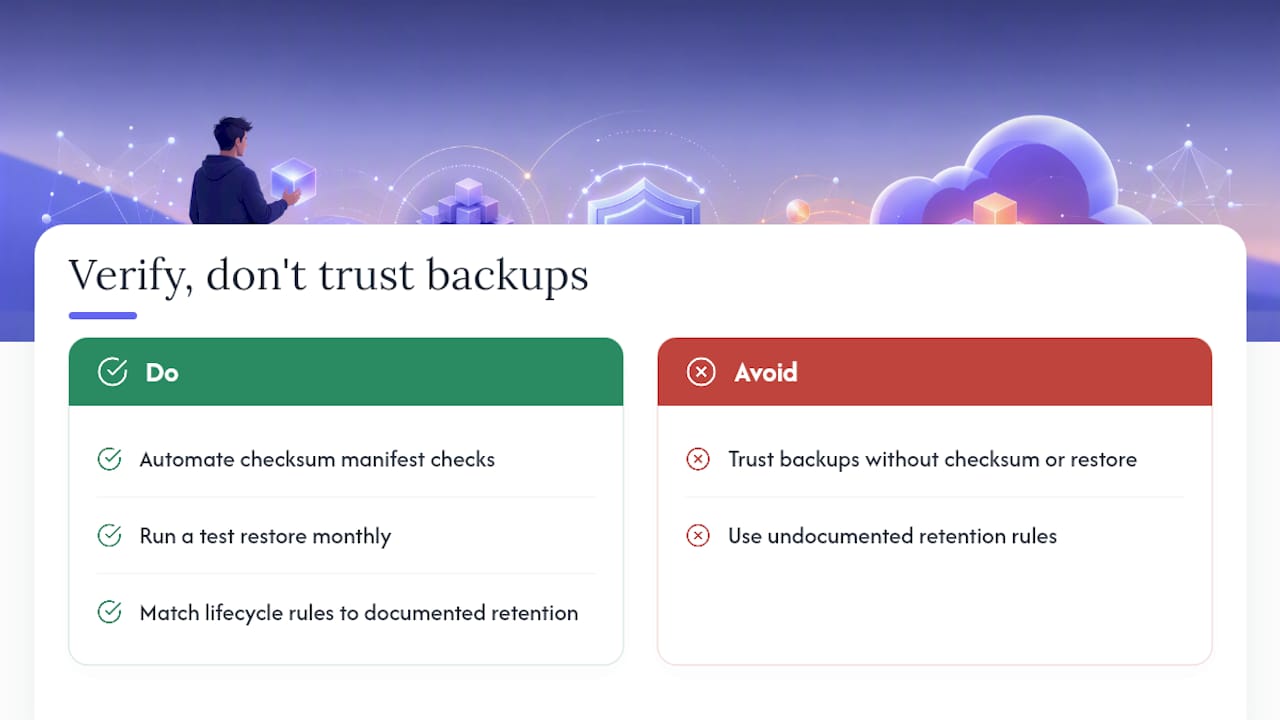
Automation without verification just means you’re failing faster and more consistently. The R2 setups that hold up in production always share one trait: nobody trusts a backup until a checksum or a real restore has proven it. That mindset, not any particular tool choice, is what separates a backup system from a backup theater.
Before I’d trust any backup pipeline in production, three things need to be true: the checksum manifest exists and gets checked automatically, a test restore has actually run within the last month, and the lifecycle rules match the retention policy someone actually documented, not just the one in someone’s head.
— Scott
Managed Backups That Stream Straight to Your Own Bucket
Building and maintaining your own dump-compress-verify pipeline works, but it’s ongoing work: monitoring cron jobs, rotating tokens, and chasing down why a checksum mismatched at 3 AM. Vpssnaps automates that entire chain using provider APIs to create snapshots directly within your own control, so the backup data lands in storage you own rather than a vendor’s proprietary vault.
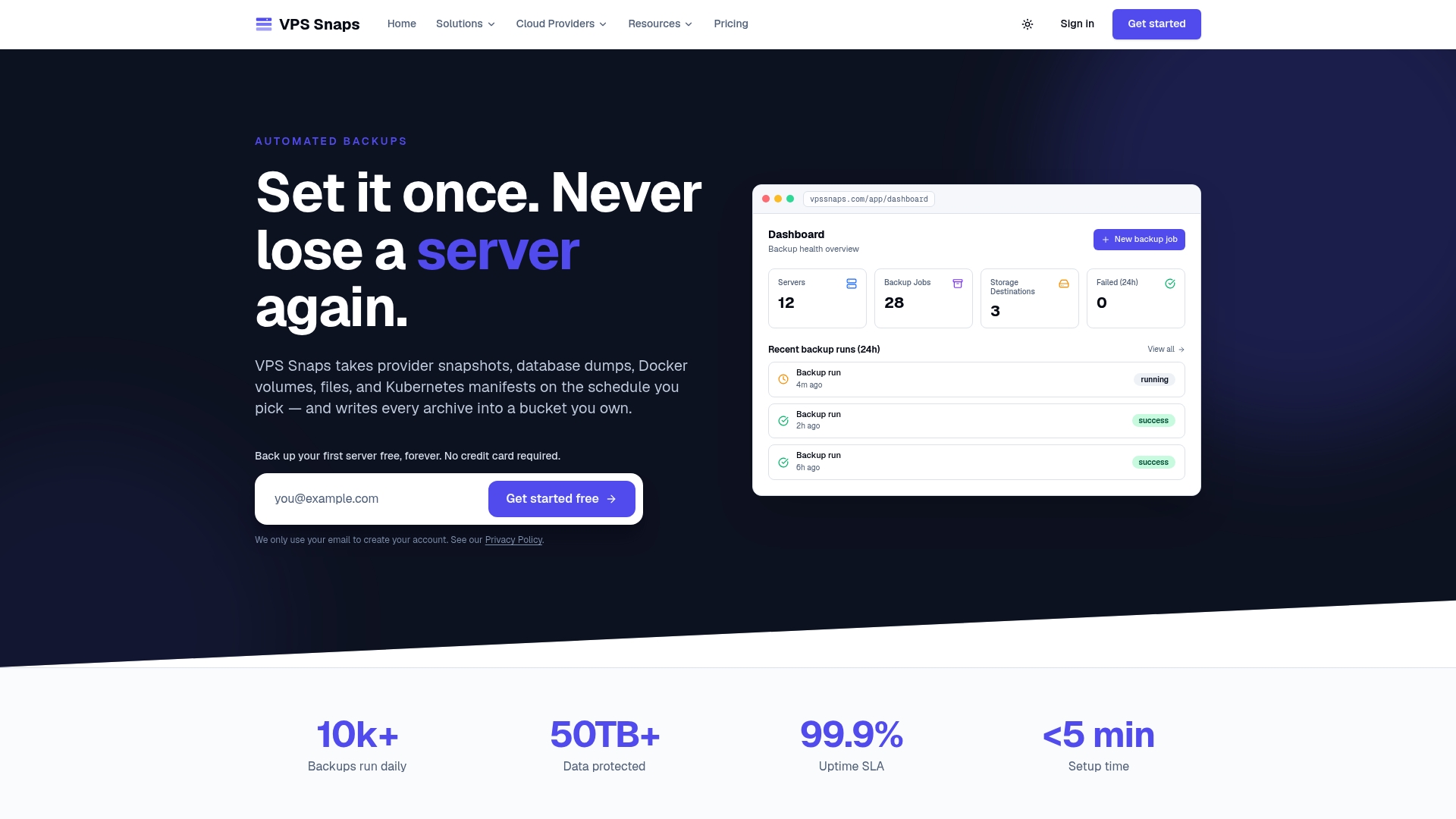
Every run comes with encrypted credential storage and detailed run logs that track successful operations and flag failures the moment they happen, the same verification discipline this article just walked through, minus the maintenance. Vpssnaps supports scheduled snapshots across providers including Linode, DigitalOcean, and Hetzner Cloud, plus Kubernetes backups using Velero or manifests and CSI for teams running containerized infrastructure. If a data center outage is part of your disaster recovery planning, pairing automated snapshots with physical security practices closes the loop on both ends.
Plans start at $10 a month on the Starter tier, scaling up through Standard, Pro, and Agency as your server count grows. Check the pricing page and start a free trial to see your first automated snapshot land in your own bucket.
FAQ
Is Cloudflare R2 Good for Database Backups?
Yes. R2’s S3 compatibility means tools like pg_dump or mysqldump paired with aws-cli or boto3 work without modification, and R2 charges no egress fees for retrieving your backups later. The main requirement is getting the account-specific endpoint format right and scoping your API token to Object Read & Write on the backup bucket only.
Does TTL Delete Old Backups Automatically on R2?
No. TTL in Cloudflare’s Sandbox SDK only controls whether a backup is accepted at restore time, with a default of three days. Actual deletion requires configuring object lifecycle rules scoped to your backup prefix.
How Do I Verify a Backup Uploaded to R2 Correctly?
Compute a sha256 checksum before upload, store it in a manifest file alongside the backup, and compare hashes after the upload completes. Scheduling a periodic test restore alongside checksum checks catches failures that a hash comparison alone can miss.
What’s the Cheapest Way to Automate Backups to R2?
GitHub Actions is typically the lowest-friction option since it requires no servers of your own and runs on a cron schedule using repo secrets for your R2 credentials. Combined with R2’s lack of egress fees, this keeps both compute and storage costs minimal for most small to mid-sized projects.
Can Vpssnaps Handle My R2 Backup Automation for Me?
Vpssnaps automates snapshot creation, compression, and streaming to storage you control, along with encrypted credential handling and run logs that alert on failures. Plans start at $10 a month for the Starter tier, with higher tiers available for teams managing more servers or providers.